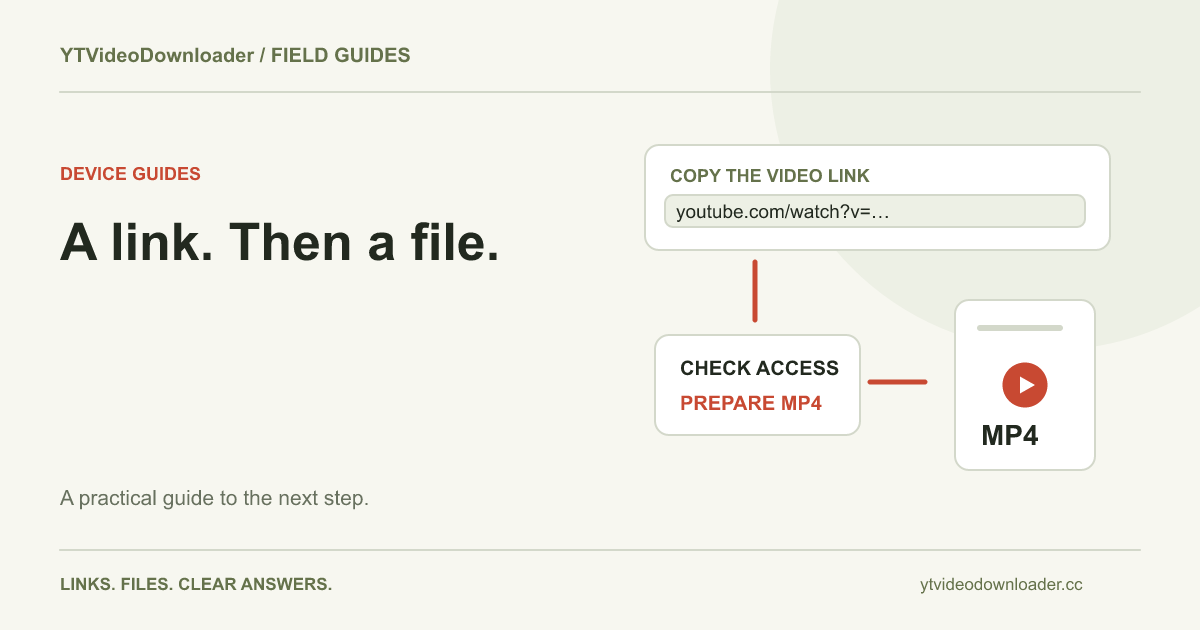
To download and save YouTube videos using a copied link, open the individual video, copy its sharing address, and paste it into YT Video Downloader. Sign in with Google, follow the account access shown by the site, and prepare the file. When the MP4 is ready, use its download link and wait for your browser to finish saving. Those are two separate stages: preparing a file on the service and transferring that file to your device. A copied address alone is neither a video file nor a completed download.
Copy the video link rather than the surrounding page
Start on the video you actually want. On YouTube, open Share and choose the copy-link action. The YouTube sharing instructions describe this process and explain how a shared address can include a starting time. On a desktop, the address bar can also provide the individual watch URL. Copy the address itself, rather than the page title, an embed snippet, or the text of a message that happens to contain a link.
A common watch address uses youtube.com/watch followed by a video identifier. A short sharing address uses youtu.be, and a Shorts address places the identifier after /shorts/. The current input parser recognizes these individual-video patterns and normalizes a supported identifier to a watch address. A channel, search page, playlist-only URL, or YouTube Clips sharing page is a different input. If your pasted text points to a collection, reopen the individual video and copy that video's link instead.
Check what your copied address points to
Before submitting, paste the address into the input field and read it once. A valid-looking URL can still be the wrong video. Compare the source title or opening scene on YouTube with the video you intended to save. If someone sent you a message containing several links, make sure you selected the one belonging to that video. This quick check prevents spending a successful preparation on the wrong source.
The service accepts supported HTTPS YouTube addresses, not arbitrary download websites or shortened links from unrelated hosts. An accepted address is only the first check: the source must also be accessible to the processing service. A video that plays inside your signed-in YouTube session may have access conditions the downloader cannot satisfy. Changing the spelling of a URL cannot supply missing access. Use the message returned for that source to decide your next step.
Choose the output before you submit
Use the YouTube to MP4 converter when you need a video file with picture and sound. The homepage also starts the supported MP4 workflow. For short-form sources, use the Shorts tool when that description best matches your task. The copied link identifies the source; the tool page determines the requested output. Copying the same address into a different tool does not change what the source contains.
There is no need to choose an invented resolution preset or install an extension for this website workflow. Review the page's current controls and supported output instead of assuming that every online converter has the same settings. If your next step is editing, consider the destination editor's accepted formats before starting. Keep the original source address in a project note so you can identify what was prepared and return to the correct video later.
Sign in with the account you want to use
Google sign-in is required to submit a processing task on this site. Use the same Google account when reviewing your purchases, remaining access, and previous tasks. If submitting the form takes you to sign-in, finish that step and return to the tool. Check the restored address before trying again, particularly if you changed devices or opened a separate browser profile.
Available access follows the current account and site settings. The download plans page explains the available purchase options and billing details. Free access, when enabled, follows the tools and conditions currently offered; this guide does not promise that every format is permanently free. You can read the instructions before purchasing, then choose access that matches the preparations you expect to need. The details shown at checkout are more useful than a price copied into an older tutorial.
Submit once and read the processing stage
Select the preparation button after checking the link and your account. The task may wait for an available processing node before the service checks the source, retrieves media, and prepares delivery. Keep the page available and read its status. Repeatedly pressing the button or opening duplicate requests does not make an already accepted task complete sooner.
The site allows one unfinished task per account or network IP. If you share a connection, another user's active task can explain a busy message even when your own account has no new request. Let that task finish before submitting again. If a status takes longer than expected, check your account history before creating a replacement request. This helps distinguish an accepted job from a browser message that stopped updating.
Save the prepared MP4 through your browser
When the result is ready, choose Download MP4. Your browser may save automatically to its configured folder or ask where to put the file. Choose a destination you can find again and allow the transfer to finish. A video preview, a copied result URL, and a file saved on your device are different things; confirm the completed download rather than relying on the presence of a button.
The Chrome download guide explains how to open the downloads list, reveal a file in its folder, and change the default location. If a browser shows an incomplete transfer, treat that as a saving problem before submitting another preparation. Keep the result page available while investigating. Prepared links are temporary, so save the file during the displayed availability window instead of treating the result as permanent storage.
Find the file on a phone or computer
On a computer, start with the browser's downloads list and reveal the completed file. That is more reliable than searching several folders for a similar name. On an iPhone or iPad, Apple's guide to finding downloaded files explains the Files app and the download controls in Safari. A downloaded MP4 does not necessarily appear automatically in a photo library.
For the differences between a browser history entry, a local folder, and a photo library, read where YouTube downloads are saved. If your device uses cloud storage, check whether the full file is local before relying on offline playback. Moving or renaming the saved file is a device-management step; it does not require another request to the downloader. Keep its filename extension so applications can recognize the format.
Confirm the saved file is the result you expected
Open the completed MP4 and check picture, sound, and the part of the video you intended to keep. Compare it with the original source. A filename alone does not establish that a file finished transferring or that it contains the expected video. If the browser reports completion but one player cannot open it, check another compatible player before deciding the preparation failed.
A timestamp in a copied sharing link describes where playback should begin on YouTube. It is not a request to cut the downloaded video. The current parser uses the video identifier rather than that playback timestamp. If your project requires a segment, plan an appropriate trimming step after obtaining a supported file; do not assume that a Start at sharing option changes the MP4's duration.
Match a failure to the step where it happened
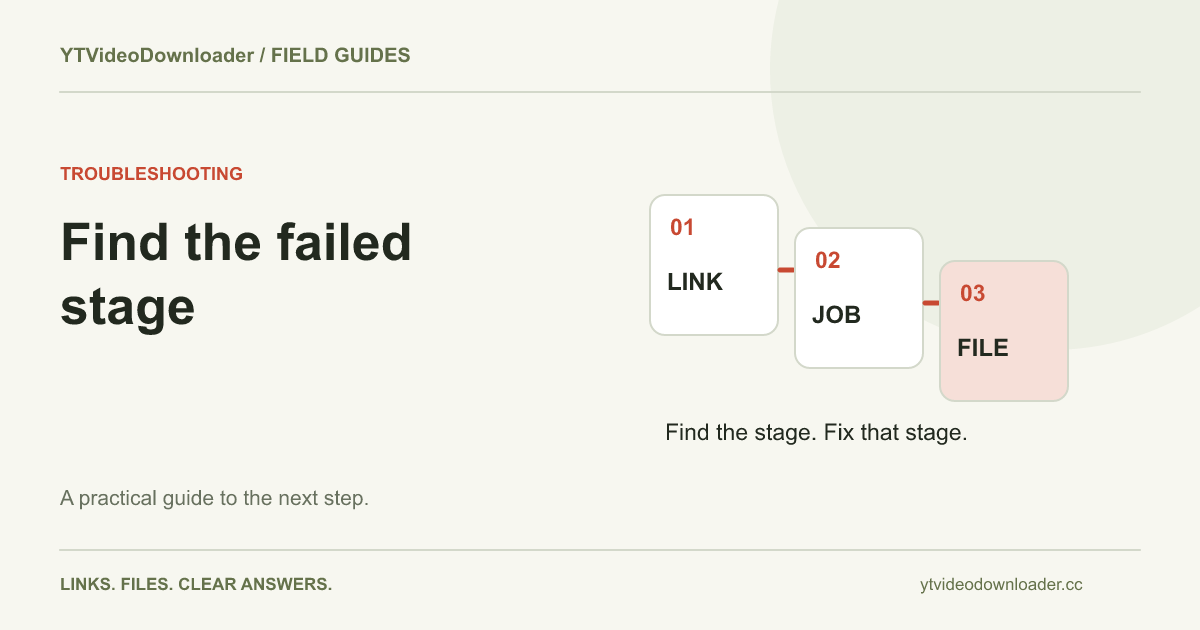
If the website rejects the address immediately, return to the individual video and copy its HTTPS link again. If preparation starts and then fails, keep the task reference and displayed explanation. If preparation succeeds but the local transfer is incomplete, inspect the browser's download message and available destination storage. These are different problems and need different evidence.
Use the YouTube download troubleshooting guide for the message you actually received. A failed preparation does not consume a purchased download, while a successfully prepared file is not the same as proof that your browser saved it. Before contacting support, note the approximate time, tool, task reference, and whether any completed local file exists. That record lets you explain the problem without sharing passwords or payment-card information.
Keep a repeatable link-to-file workflow
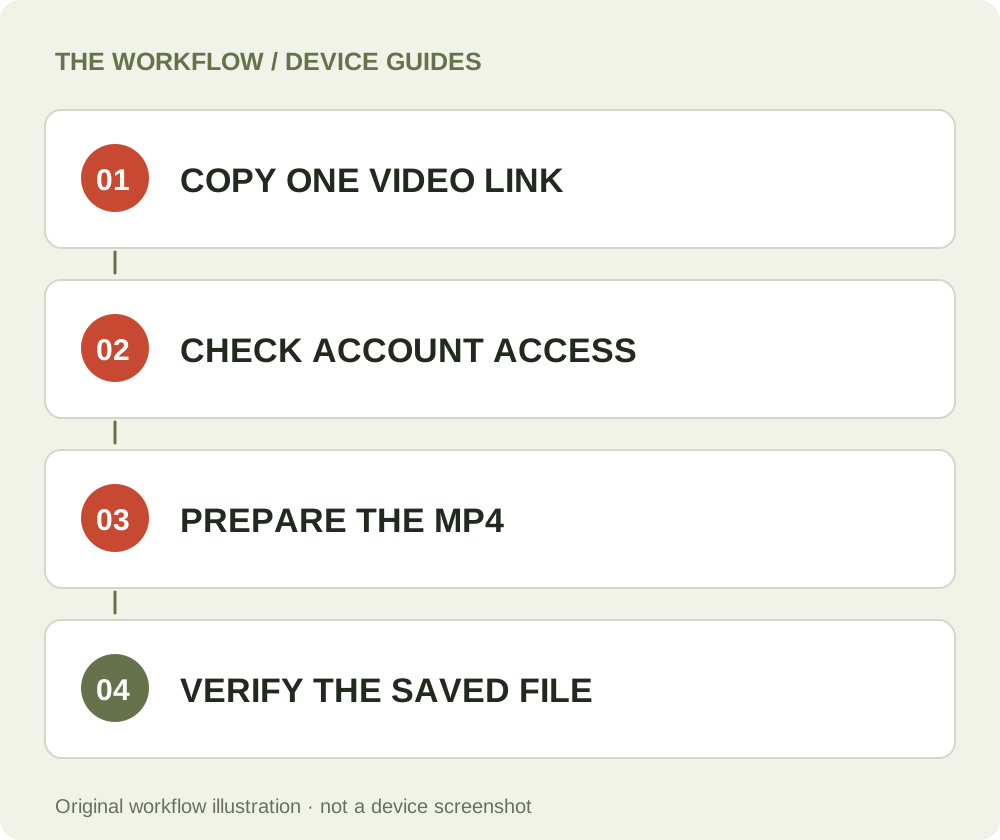
For later downloads, follow the same sequence: identify one source, copy its link, choose the output, verify account access, prepare once, and confirm the browser's saved file. Use a short naming convention for projects with similar video titles. Keeping a source note alongside the finished media makes it easier to recognize an old result without repeating the preparation unnecessarily.
This guide follows the site's current input handling and account workflow, with official sources linked for sharing and browser saving. It does not claim physical testing on every phone or operating-system version. Illustrations show the sequence rather than device screenshots. Return to the tool when you have the correct link, and verify the complete route from that address to a playable file on your own device.
Questions about this guide
How can I download and save videos from YouTube?
Copy the individual video link, paste it into the supported tool, sign in with Google, prepare the file, and save the ready MP4 through your browser. Confirm the transfer completed on your device.
How do I download a YouTube video with a copied link?
Copy the video address from Share, paste only that HTTPS address into the input, and submit one preparation. A channel, playlist or Clips sharing link is not the same as a supported individual-video address.
Does a copied timestamp download only part of the video?
No. A playback timestamp in a sharing link is not a trimming instruction. This service normalizes supported links to the video identifier.
Is copying a link enough to save the MP4?
No. After preparation, choose Download MP4 and wait for the browser transfer. Check its completed download entry and open the resulting local file.
YT Video Downloader
Use the relevant tool or troubleshooting reference when you are ready to continue.
Open YT Video DownloaderAbout this guide
Published November 4, 2026; reviewed November 4, 2026. Sources are linked beside the relevant explanations. Source and implementation review of supported links, Google sign-in and browser saving; no physical mobile-device test or new end-to-end media test is claimed. Illustrations explain the workflow and are not presented as device screenshots.