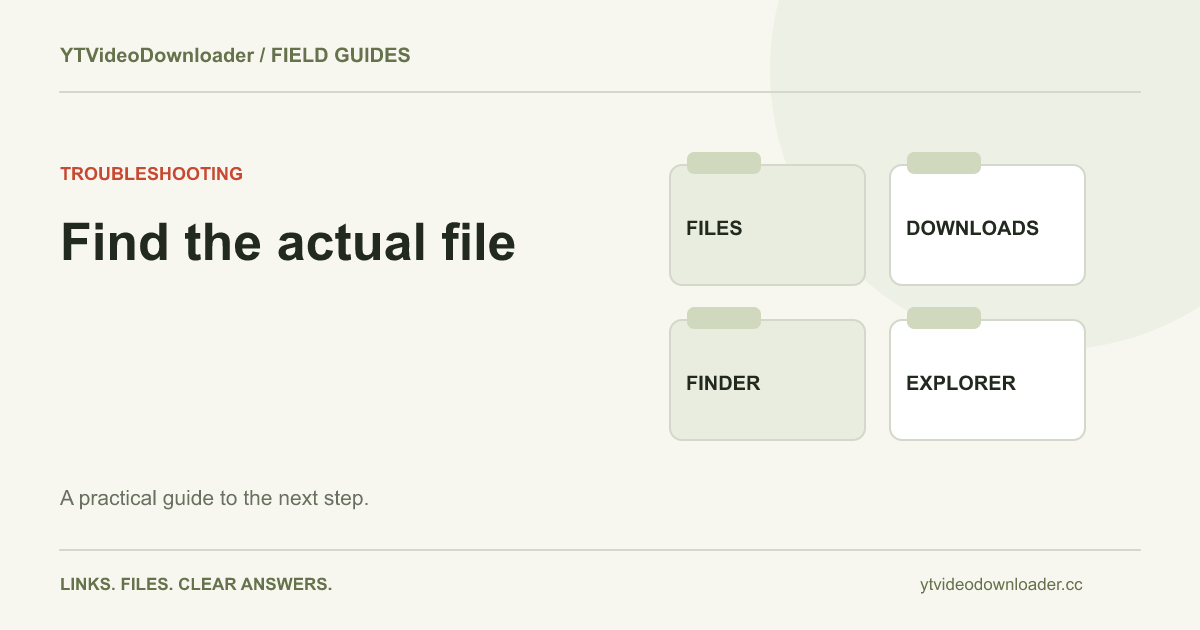
Where YouTube downloads are saved depends on what produced the download. A browser-saved MP4 normally belongs to a device folder chosen by that browser. An offline item managed inside the YouTube application is different and may not be a reusable MP4 in your file manager. A temporary result on a processing website is different again. Identify which of those three situations applies before searching every folder or preparing the same video another time.
First identify what you actually saved
Ask what happened immediately before the file seemed to disappear. Did you select Download MP4 from a website? Did a browser show a transfer? Did you use an offline-viewing feature inside an application? Or did you only bookmark the source? Those actions create different kinds of records. A saved address points to a location; it does not necessarily contain the video itself.
For the YouTube to MP4 tool, the useful evidence is a completed browser transfer followed by a local file. If no result became ready, there is nothing for a download folder to contain yet. If a transfer started but stopped, check that browser entry before searching for a playable result. The download-failed guide explains those earlier stages. Keeping the distinction clear is often enough to avoid an unnecessary new processing request.
Find a recent download on iPhone
Start with the browser that handled the save, then inspect Files. Apple's iPhone download guide identifies the Downloads folder and Safari's own downloads list as useful starting points. The active location can depend on your settings, so check the relevant iCloud or device-storage area rather than assuming every iPhone follows a single folder path.
Photos and Files are not interchangeable views. A browser file can exist in Files without a corresponding item in the Photos library. Open the MP4 to verify it, then use an available import or Save Video action if you want a compatible copy in Photos. If that action is unavailable, keep the original while investigating. The iPhone walkthrough covers this workflow more fully. A gallery's absence is not sufficient evidence that Safari failed to save the video.
Find a recent download on Android
Check the browser's downloads first, then open the phone's file-management application. Android manufacturers use different app names and interfaces, so look for the relevant Downloads category or recent-file view. Google's Android file instructions explain the general file-management route. The completed browser entry is useful when you are not sure which storage location was selected.
A gallery may show indexed media, selected device folders, or cloud items rather than every file. If the video opens from the file manager but is missing from Gallery, investigate that application's folder or import controls. Avoid creating duplicate copies in several locations before identifying the first one. The Android download guide explains how to follow the source, preparation, transfer, and gallery stages separately. A recognized file and an indexed media-library entry can be related without being identical.
Find a file on Windows or macOS
On a computer, begin with the completed item in the browser that saved it. Use the available open or reveal-in-folder action, then inspect that actual location in File Explorer or Finder. The folder you normally call Downloads may not be the browser's current destination. A project folder, external volume, or previous Save As choice can explain why the file is somewhere else.
If there are many similarly named items, compare the recent date and size rather than opening each one at random. A second download can have a suffix, while a saved webpage can have a name similar to the video. Keep the extension visible where practical so you can distinguish an MP4 from a shortcut or page. The PC and Mac guide gives the longer workflow, including how to separate an interrupted transfer from a completed file that a particular player cannot open.
A download list is an index, not the file itself
Browsers keep records of downloads, but the list and the underlying files can have different lifetimes. A completed entry may still be visible after you moved or deleted the file elsewhere. Conversely, removing an entry from a browser list should not be treated as a reliable way to erase every copy of the file. Use the actual file manager to inspect the item and its location.
When you move a clip into a project folder, verify the new location before relying on an old browser shortcut to find it. If you copy it instead, decide which copy is the working version. That prevents edits to one file from being mistaken for changes to another. A useful organization rule is to keep one clearly named original and create explicitly named working copies only when your task needs them. This is a local-file decision rather than another download feature.
Recognize cloud-backed and removable locations
A filename visible in a cloud folder may represent an item that still needs to be retrieved to the current device. If you need offline access, check that the relevant copy is actually available locally. Open it before traveling or disconnecting from the network. Do not infer availability solely from a thumbnail or a familiar filename in a synchronized directory.
Removable storage creates another possibility. A file saved to a drive or memory card will not be available when that storage is disconnected, even if a browser still remembers the old path. Reconnect the correct destination and check the item there. Avoid preparing another server copy just to compensate for an unplugged destination. Decide separately whether you want a local copy, a synchronized copy, and a backup. Each serves a different purpose, and a temporary processing result does not replace all three.
Distinguish offline viewing from a browser MP4
YouTube's offline-viewing FAQ describes its application-managed feature. That is not the same workflow as receiving an MP4 link and choosing a folder in a browser. If you used the application's offline control, return to its own library or download interface rather than expecting the item to behave like an independently saved media file.
This distinction matters when you want to edit or transfer a video. An app-managed viewing entitlement and a local asset are different requirements. Determine which one fits your task and what permission applies before choosing a method. The source-permission article explains why technical access and reuse rights should be considered separately. A subscription, bookmark, or offline badge should not be assumed to grant an export or a license for a new publication.
Understand expired results and account history
A prepared result on YTVideoDownloader is available temporarily so your browser can save it. The account's record of a job is not a permanent archive of its media. If a link has expired, a historical ready status does not recreate the server's file. Look for a completed local transfer before requesting another preparation, particularly if the first job already made an MP4 available.
The pricing page explains processing allowance and temporary delivery. If you saved the file successfully, organizing it afterward does not require another credit or request to the processing service. If you never completed the transfer and the result is gone, the next preparation is a new job under the current rules. A missing device file and an expired server link can happen together, but they describe different parts of the history and should be reported that way.
Make the next file easier to find
Choose a destination before starting a session and use a short naming pattern afterward. A topic, creator or project identifier, and useful description are usually easier to search than a generic video filename. Store the original URL in a project note if you need a reliable source reference. Check the saved file once before closing the processing tab and clearing away other windows.
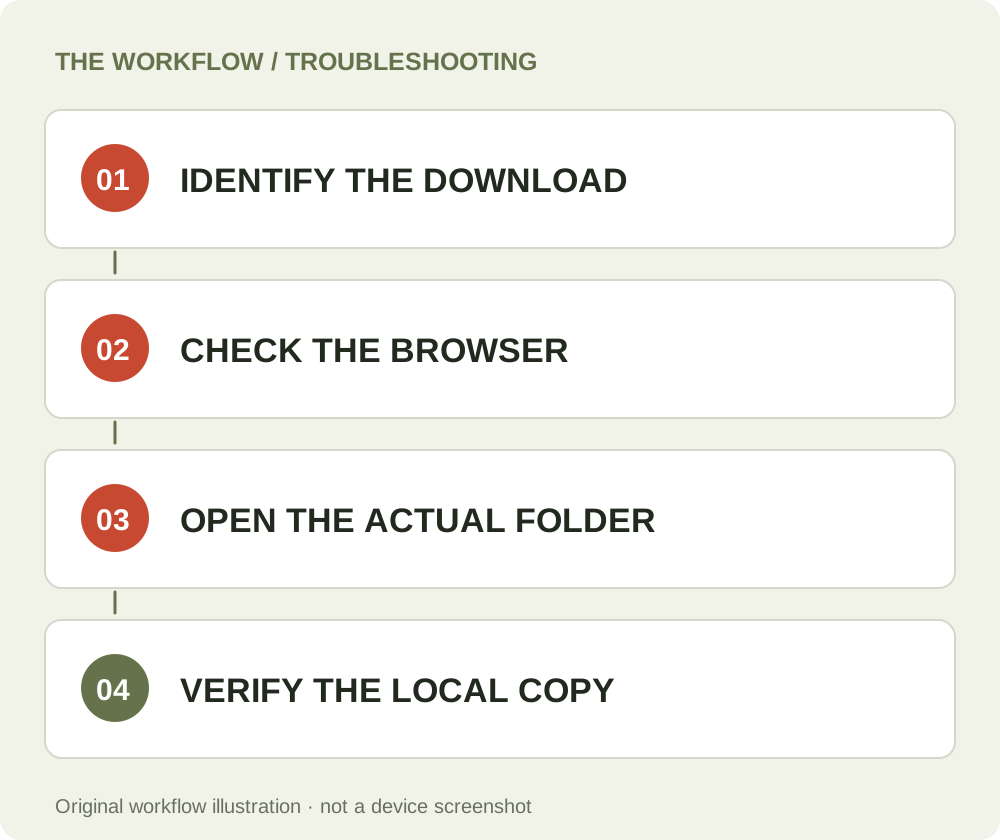
If a file is still missing, report the browser, operating system, approximate time, whether the transfer completed, and the last location you selected. Device-specific instructions here are documentation-based; the diagrams show storage relationships rather than a claimed phone test. For a new supported source, return to YT Video Downloader, prepare one result, and follow it all the way into the file manager. The best confirmation is a playable file at a location you can name.
Questions about this guide
Is a bookmark a downloaded video?
No. A bookmark saves an address. A local MP4 requires a completed transfer to device storage.
Does account history keep the MP4 forever?
No. The record and the temporary delivery file have different lifetimes. Keep your own local copy after saving.
Why does a browser entry point to a missing file?
The file may have been moved, deleted, or saved to storage that is no longer connected. Inspect its actual destination.
YT Video Downloader
Use the relevant tool or troubleshooting reference when you are ready to continue.
Open YT Video DownloaderAbout this guide
Published and reviewed on November 3, 2026. Sources are linked beside the relevant explanations. Editorial and source review; physical mobile-device testing is not claimed. Illustrations explain the workflow and are not presented as device screenshots.