YouTube to MP3 in three steps
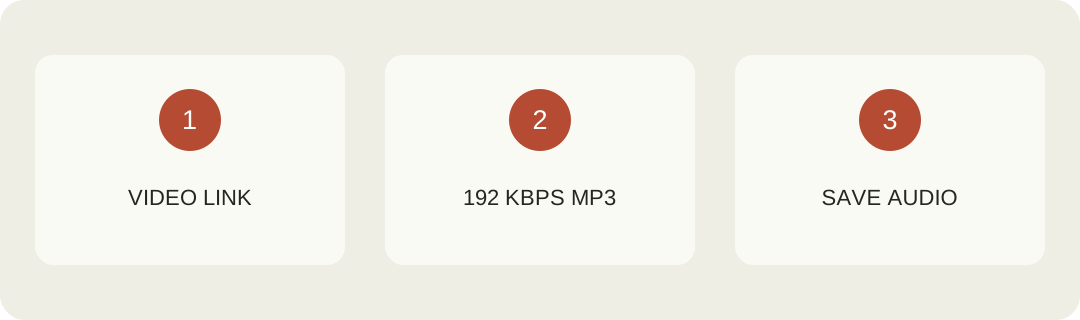
Start with the individual video you want to prepare. Copy its full sharing link, open this YouTube to MP3 converter, and paste the address into the form above. Sign in with Google when prompted, then submit your request. Wait until the result offers Download MP3 before expecting a local audio file. The final step is saving that result through your browser and opening the saved file to check that it is the recording you intended.
The link field accepts a supported video address rather than a search phrase, channel homepage, or collection. A regular watch address, a youtu.be sharing link, or an individual Shorts link identifies one source. If you copied the wrong item, replace the address before submitting. Keeping the source page open makes it easier to compare the intended recording with the file after processing. This page prepares audio; use the YouTube to MP4 converter when you need the picture as well.
What this YouTube to MP3 converter delivers
The output is an MP3 audio file intended for ordinary compatible audio players. It does not include the original video's picture, captions, comments, or interactive page. The service selects an available audio source and converts it to the configured MP3 output. The initial output setting is 192 kbps. That setting describes the resulting encoding; it does not establish how much musical detail the original recording contained or guarantee identical results from different sources.
The tool handles one video per request, using the processing allowances linked to your Google account. Free access and paid access can offer different processing benefits. Check your account access before submitting, and use the returned task message to understand any source-specific issue. Source availability and the actual result both matter. A link that opens in a streaming application can still be unavailable to the processing service. Live streams, collections, and sources requiring an account-specific access step are outside this workflow. You can review the source in its normal player before deciding whether the supported single-file workflow matches your task.
Audio quality starts with the source
A larger bitrate number cannot recreate information already missing from a recording. If an upload has background noise, clipping, a quiet speaker, or a compressed source track, converting its container will not correct those properties. Listen to the original before interpreting the MP3. The comparison should concern the same part of the same recording, with a similar player volume, rather than two unrelated passages that naturally have different loudness.
For speech, check that words remain intelligible and that the beginning and end are present. For music, listen for obvious dropouts and confirm that the recording is the intended version. This tool does not provide a mastering stage, stem separation, vocal removal, or a promise of studio-quality sound. If your next task is editing, keep the original downloaded file unchanged and make working copies inside the application you use. The format guide explains the distinction between a file container and its media tracks.
Google sign-in connects your downloads
Google sign-in gives the service a consistent account for processing history, purchased downloads, and annual membership. Use the same Google account when purchasing and returning. Signing in with another account does not transfer the first account's balance. The account connection belongs to YTVideoDownloader and does not sign the service into your YouTube session. You do not need to provide your Google password to support or upload browser cookies to use this form.
If the form sends you to sign in, the site keeps the current link in browser session storage when available so you can return to the same tool. Review the address after returning and start the request when ready. Browser storage can be cleared or unavailable, so keep the source address accessible until processing begins. For an account question, check the email shown in the account area before assuming a purchase or task has disappeared.
Choose free access, a download pack, or annual membership
When free access is enabled for this tool, a signed-in user can prepare supported audio without spending a purchased download. Free availability can change according to the site's current offering. When it is not available, the account needs either a remaining purchased preparation or an active annual membership. The pricing page shows the current choices and purchase conditions. Read those conditions before paying so that the single-file service fits the audio you intend to prepare.
The download pack costs $4.99 for fifty successful preparations. A completed MP3 uses one preparation, just as a completed supported video does. Annual membership costs $39.99 per year and includes unlimited successful supported preparations while the paid membership is active. It does not consume a separate pack balance during that period. Membership does not remove processing queues or the stated conditions for an individual source. Unused purchased pack downloads remain available when a membership period ends.
Processing, saving, and listening are separate steps
A queued task has been accepted but has not yet produced an audio file. A processing task is being prepared. A ready result means the server has made a file available; the browser must still transfer it to your device. Follow the Download MP3 action and wait for your browser's save to finish. Only then open the local result in an audio player. A successful-looking result page alone is not confirmation of a completed local transfer.
Prepared files are temporary. Save your MP3 while its result remains available, normally for about fifteen minutes after completion. Reopening the same ready result within that window does not create another preparation. Submitting the source again after expiry creates a new task and uses its applicable entitlement. If the browser already finished saving, look for the local file before starting over. The download-location guide explains why browser records, device folders, and application-managed offline items are different places.
Find an MP3 on your device
On a computer, inspect the browser's downloads list and reveal the completed item in its folder. On a phone, check the relevant file manager and browser downloads before expecting the audio to appear in a music application. A file-based player can behave differently from an application that manages only its own library. The filename extension should remain .mp3 so other applications can recognize the format; renaming a file does not convert its contents.
After checking playback, move the file into a recognizable project folder. A short descriptive name and a note containing the original source address can make later organization easier. If you transfer the MP3 to another device, verify the transferred copy rather than assuming it has arrived because the original still plays. Device permissions, cloud synchronization, and local storage preferences are separate from preparation on this website. The iPhone guide and Android guide explain related browser-saving workflows.
When a YouTube to MP3 request fails
Read the returned message and identify the stage that failed. A rejected link calls for checking the address. A busy service calls for waiting. An unavailable source calls for checking that particular video. A completed MP3 that your player cannot open calls for inspecting the saved file and player. Repeatedly submitting the same request without identifying the stage can create confusion about which result and account history entry you are following.
Failed preparation does not consume a purchased download. An active task can temporarily reserve one while work is under way, and that reservation is released when the task fails. Successful preparation consumes the download even if you later miss the temporary save window. Check recent tasks before reporting a balance problem, and include the account email, approximate time, task reference, and exact message in a support request. The troubleshooting center provides the next checks for related service errors.
Related tools and useful next steps
Use this page for audio from one supported video. Choose the YouTube Shorts downloader for a supported Short with its picture, or the YouTube thumbnail downloader for the video's available preview images. For broader guidance about choosing a source, the permissions guide separates source availability from permission to reuse its contents. Return to the form when you have selected your source and know where you want to save the MP3.