To download YouTube videos on PC or Mac as MP4 files, copy the link to an individual supported video, prepare it with the YouTube to MP4 converter, and save the result through your browser. Then reveal the completed file in its folder and open it. Windows and macOS use different file-management interfaces, but the important distinction is the same: a prepared result is not a completed local transfer until the browser finishes saving it.
Choose one source and one destination
Before submitting a link, decide where the finished file should go. A Downloads folder is convenient for a quick check, while a project folder makes repeat work easier to manage. If you use an external drive or network location, confirm that it is connected and writable. A clear destination prevents an otherwise successful save from turning into a search through several folders with similar names.
Copy the address of the specific video rather than a channel or playlist. Use the source's share controls when possible and check the pasted address before selecting Prepare MP4. Keep the original page available for comparison with the result. If your source is short-form content, the Shorts downloader accepts supported Shorts links through the same general link-to-file workflow. Neither page creates a permanent video library or a batch queue simply because it is open on a desktop computer.
Prepare a video in the website tab
Open the tool in your usual browser, paste the address, and submit one request. Read the status it returns. If preparation cannot start, deal with that message instead of changing Windows or macOS file settings. If the service reports progress, keep that tab available until a result is offered. The browser cannot save an MP4 that has not yet been prepared.
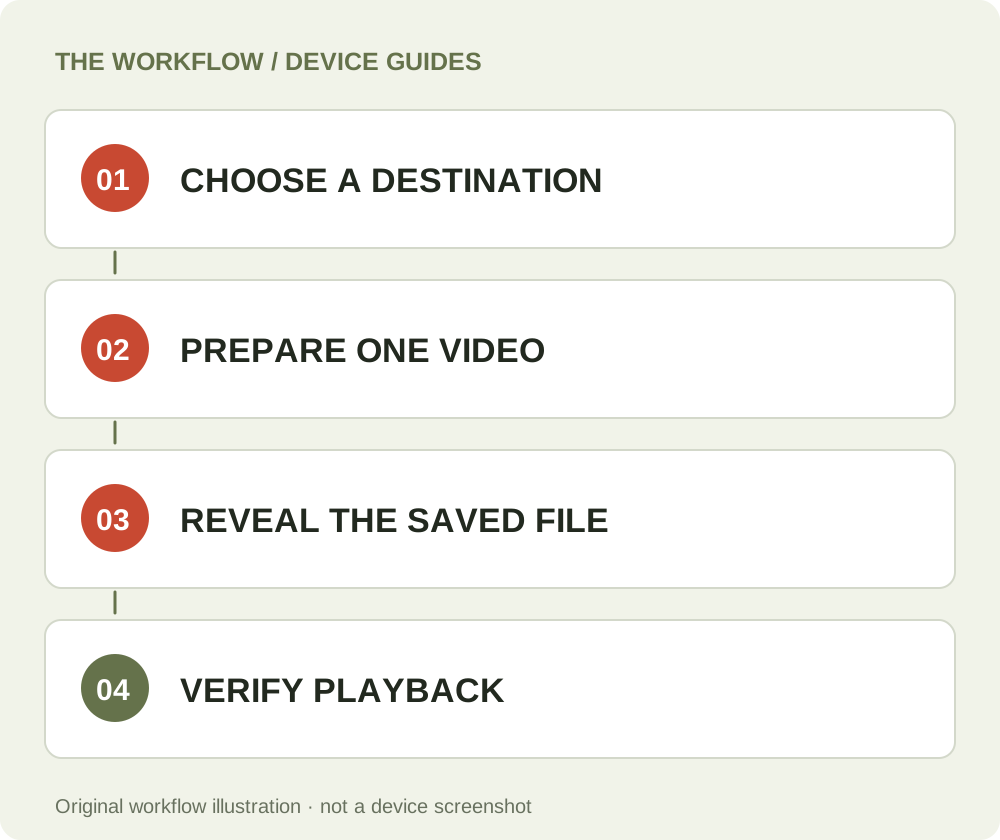
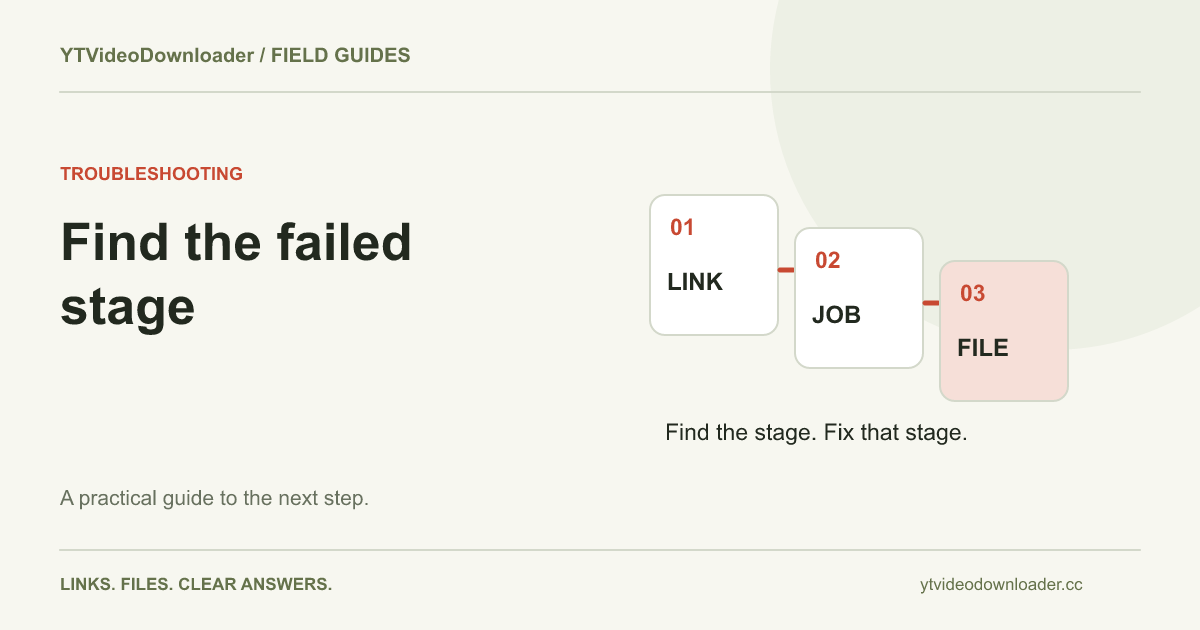
When Download MP4 appears, select it and follow the browser's own download action. A file dialog may ask for a destination, or the browser may use a default folder. Do not close the page solely because the button has been selected; inspect the transfer first. The failure-stage checklist explains how to distinguish preparation failures from an interrupted browser download. That distinction is useful on both operating systems and can prevent an unnecessary second processing request.
Save and find the file on a Windows PC
In Chrome on Windows, use the download entry to inspect progress and open or reveal a completed item. The browser's current desktop download documentation describes those controls and destination settings. If another browser is in use, follow its equivalent downloads interface rather than assuming its menus are identical.
After the transfer finishes, locate the item in File Explorer. Compare its recent timestamp and filename with the request you just made. Be careful with multiple copies: a suffix can distinguish a newer download from an earlier attempt. Open the actual video, not an internet shortcut or a saved webpage. Microsoft's file-search guidance is useful when you need to locate an item across folders. A visible browser history entry and a present local file are related, but they are not the same evidence.
Save and find the file on a Mac
Safari and Chrome can use different default locations on the same Mac. If you switch between them, check the browser that performed the transfer. In Safari, its download controls provide a route to the completed item; Apple's Safari download guide explains the relevant actions. Use Finder to confirm where the file exists after saving.
A Finder search can help when a project folder or another volume was chosen earlier. Sort or compare results by recent date and inspect the filename before opening it. The same video saved more than once can produce several plausible candidates. Once you find the correct result, move it deliberately into your chosen project location. Keep the source address in a note if you need to identify the original later. There is no need to prepare the video again merely to change the name or folder of a completed MP4.
Confirm that the transfer is complete
A browser may display an item while it is still being written. Wait for a finished state rather than judging only by the filename shown in a folder. An interrupted transfer can leave a partial item, and changing its extension will not provide missing bytes. If the browser reports an error, record its wording and check the destination, available space, and connection.
While a valid result link remains available, address the saving step using that result when practical. A fresh preparation and a repeated local transfer are different operations. If the temporary result has expired, returning to an old account-history entry does not restore the file. The download-location article explains how browser history, local folders, cloud copies, and temporary service results fit together. Keep a playable local copy for material you intend to retain.
Check playback before moving on
Open the downloaded MP4 in a player already available on your computer. Check the beginning, a later section, the picture, and the sound. A file that opens but produces silence needs an audio diagnosis, while a file that cannot open at all may be incomplete or incompatible with the chosen application. The MP4 no-sound checklist covers common audio distinctions.
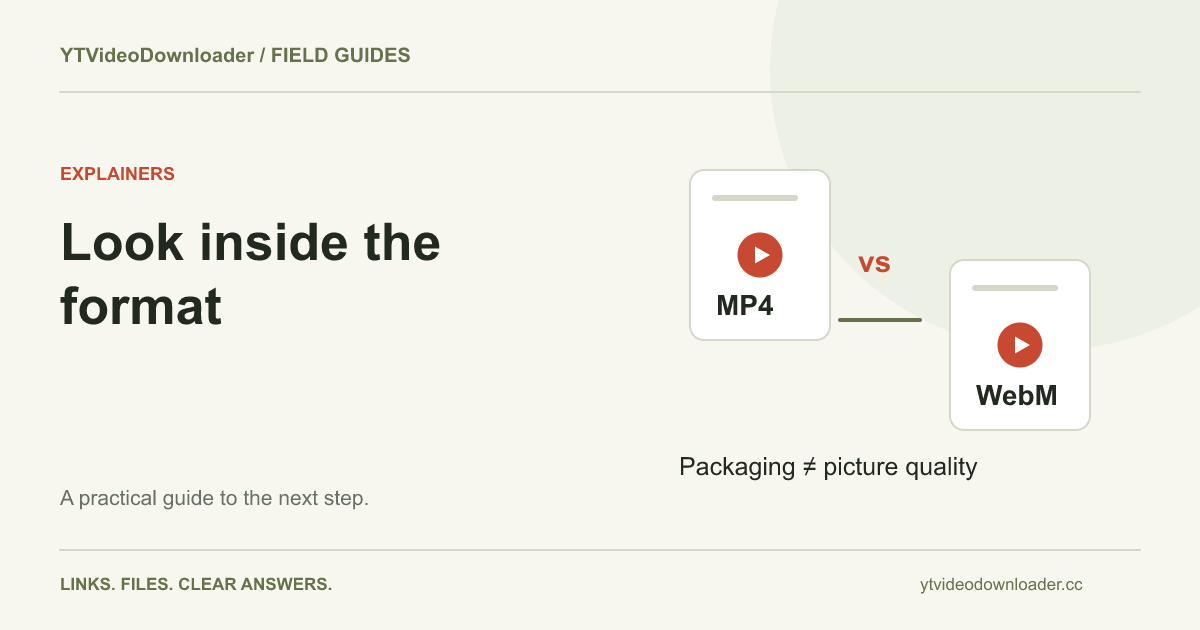
Do not infer the media's full properties from its MP4 extension. Containers can carry different encoded tracks, and an editor can have different support from a playback application. The MP4 versus WebM guide explains those layers. If another trusted application can play the file, retain that working original while investigating the destination application's requirements. A problem in one editing program does not automatically mean the browser failed to transfer the video.
Handle work profiles, shared computers, and cloud folders
On a shared computer, the folder you are viewing may belong to a different operating-system account from the one running the browser. Work and personal browser profiles can also use different preferences. Check the active environment before deciding that the video disappeared. If an organization's policies control downloads or storage, use the permitted destination and contact its administrator when necessary.
Cloud synchronization adds another distinction. Seeing a filename on a second device does not always mean its full contents are already local there. Open or make available the relevant copy before relying on it without a network connection. Conversely, moving a file from Downloads into an unsynchronized project folder may keep it only on that computer. Decide whether your task needs local access, sharing, backup, or all three; the processing service's temporary result is not a replacement for those choices.
Plan repeated downloads without losing track
For several authorized clips, use a small naming convention and finish each file before preparing the next. A project name, subject, and short description are usually easier to recognize than a list of generic video filenames. Keep a source note alongside the media when attribution or later verification matters. Open each result before treating it as part of a finished collection.
The pricing page explains download packs, annual membership, processing conditions and Google account association. Use the same Google account to check the balance and recent jobs. A larger desktop screen does not change the service's supported output or create an automatic playlist exporter. Choosing allowance should reflect the number of preparations you need, while selecting file destinations remains a local computer task. Check the currently displayed purchase state rather than assuming that an informational package card is an active checkout.
Collect the right evidence for support
If something fails, identify whether the problem appeared before the request, during preparation, during browser downloading, or when opening the saved file. Note the browser and operating-system versions, approximate time, exact message, and whether a completed local file exists. If a different source worked, include that distinction. These details are more informative than a general report that the PC or Mac method is broken.
The website workflow can be checked in a desktop browser; operating-system menus are also linked to their official documentation. This guide does not label Windows, Safari, or a particular release as physically tested unless a separate test record says so. Illustrations are explanatory rather than disguised operating-system screenshots. For mobile instructions, use the iPhone guide or Android guide. For a ready source, return to YT Video Downloader and verify the complete route from link to local MP4.
Questions about this guide
Do PC and Mac save to the same folder?
No. Each browser and operating-system account can use its own destination settings. Reveal the completed item from the browser that saved it.
Does a larger screen unlock another output preset?
No. The current service offers supported MP4 preparation without a manual resolution or codec selector.
Should I rename a partial download to MP4?
No. Changing the extension does not supply missing transfer data or convert its contents.
YouTube to MP4 converter
Use the relevant tool or troubleshooting reference when you are ready to continue.
Open YouTube to MP4 converterAbout this guide
Published and reviewed on November 3, 2026. Sources are linked beside the relevant explanations. Editorial and source review; physical mobile-device testing is not claimed. Illustrations explain the workflow and are not presented as device screenshots.