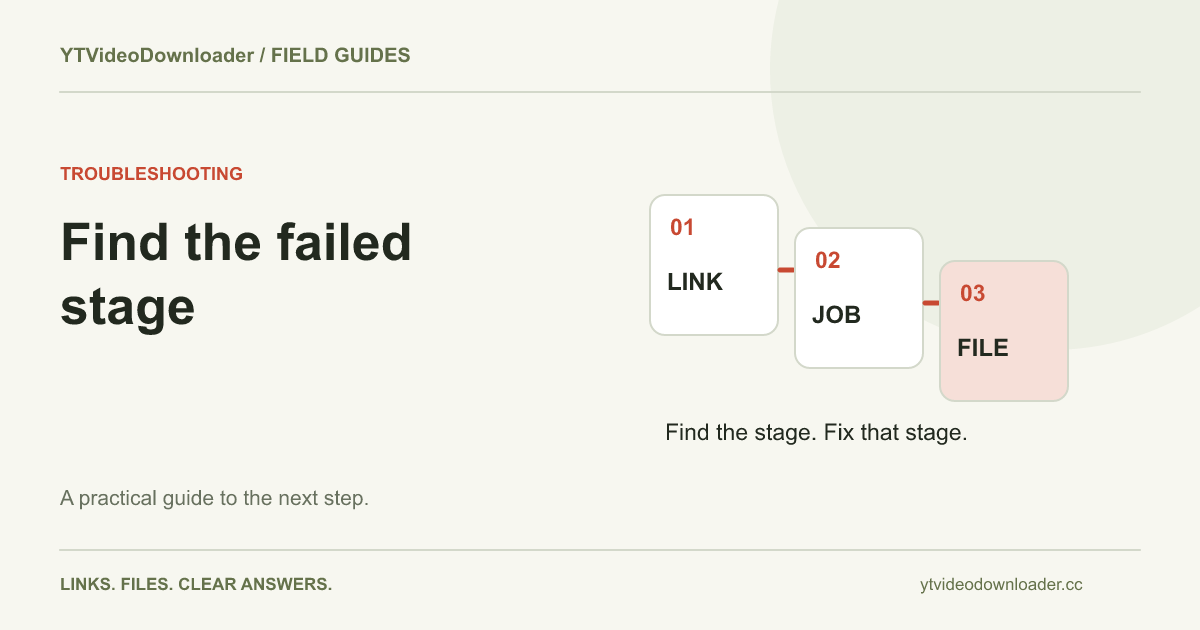
A YouTube download failed message is useful only when you know which part of the job failed. First check whether the website accepted your link, whether an MP4 became ready, and whether your browser finished saving that file. Those are three separate stages. Fixing the stage that actually stopped is usually more effective than submitting the same address again. This guide follows the YT Video Downloader workflow and explains what evidence to collect before another attempt.
Find the last successful step
Start with the result you can actually see. If the URL field rejects the address, preparation has not started. If the website shows a processing message but never offers Download MP4, the issue is still on the preparation side. If a download link appeared and you selected it, open your browser's downloads list. A canceled or incomplete entry points to the transfer or saving stage rather than an invalid YouTube address.
Write down the exact wording instead of translating several different messages into “it does not work.” Note whether the button became available and whether the browser created a file. That small record prevents an avoidable loop: requesting a second preparation when the first file is already available, or changing browser folders when the service never produced a result. For the full message-by-message reference, use the download troubleshooting center.
Check the video address before changing anything else
Copy the address of one video from its share controls. Supported inputs include ordinary watch links, youtu.be sharing links, and Shorts links. A channel, search result, or playlist page is not the same input. A pasted message can also contain punctuation, a title, or another person's commentary around a valid address. Put only the video URL into the field and check that it points to the clip you intended.
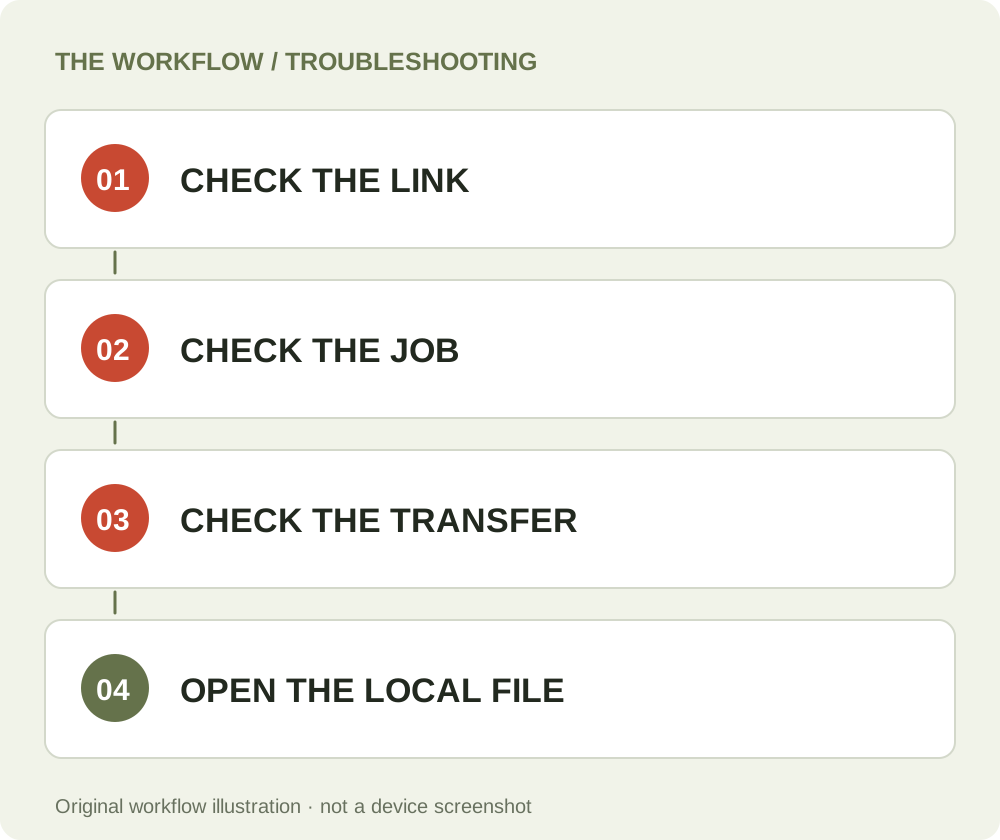
Open the source separately to confirm that the video still exists. A complete-looking link can lead to removed or unavailable material. Access through your own signed-in YouTube session does not establish that a separate processing service can retrieve the same source. This website has no step for uploading source-platform cookies or connecting a private YouTube library. If one source is unavailable, trying a different supported video is a cleaner diagnostic than sharing credentials or repeatedly altering its identifier.
Understand a busy response
A busy message means the service cannot accept another job at that moment. It does not show that your copied URL is malformed. Opening the MP4 page, Shorts page, and homepage in separate tabs still reaches the same processing service. Keep the relevant tab and check its message rather than treating each page as a separate queue.
In the current implementation, an active file can occupy capacity during preparation and temporary delivery. A finished result waiting to be saved can therefore affect the next request. If you recently prepared a file, finish the save while its link is available. If no job belongs to you, wait before retrying. The pricing page explains current processing rules and how a trial request differs from a paid credit. Purchasing allowance, when checkout opens, should not be confused with buying another simultaneous processing slot.
Separate source problems from output problems
Some failures happen after a valid link has been accepted. The source may change, a compatible result may not be available, or the output may fall outside the service's supported processing conditions. Read the specific response before deciding that your internet connection is responsible. A page that successfully submits a request but reports an unsupported source needs a different response from a browser download that stops halfway.
A useful comparison uses one other suitable source, not a long series of random retries. If one video succeeds and another consistently fails, retain that distinction when contacting support. If every request fails with the same service message, record the time and leave the original status visible. Do not describe a trial attempt as a completed paid delivery, or assume that switching to a different landing page changes the source. The YouTube to MP4 page explains the output the current tool actually prepares.
Check a transfer that started but did not finish
Once Download MP4 appears, the browser takes over the local saving step. Open its downloads interface and look for a completed entry, a paused transfer, a canceled item, or an error. Confirm that your chosen destination has room and is still available. An external drive disconnected during a save, for example, is a destination problem even though preparation worked.
Chrome's official download instructions explain its download controls and file-location options. Use those controls to inspect a transfer instead of starting a new server job immediately. While the result link remains valid, you can work on the saving stage using that result. Do not rename a partially transferred file to make it look finished. A plausible filename and an MP4 extension do not establish that all bytes reached your device.
Find a file before concluding it is missing
A successful browser save can still look like a failed download when the destination was unexpected. Open the completed browser entry, use the available reveal-in-folder action, or inspect the folder selected in that browser's settings. Your computer may have more than one folder named Downloads, especially when cloud storage, work profiles, or another user account is involved.
On a phone, a file manager and a photo gallery can show different collections. A video saved as a browser file is not necessarily imported into the gallery automatically. Follow the download location guide for a device-specific starting point. Once you locate the file, open it and check the picture and sound. If playback fails after a completed transfer, describe that as a playback problem. If only sound is missing, the MP4 audio checklist is more relevant than resubmitting a URL.
Check credits and temporary delivery separately
When paid processing is enabled, a job can reserve a credit while work is active. A successfully prepared file consumes that credit; a failed preparation releases the reservation. An account balance can therefore change while a task is underway without representing a second purchase. Review the recent job status in the same Google account used for the purchase before sending another request.
A ready file also has a temporary delivery window. An old account-history entry is evidence of a previous job, not permanent storage of its MP4. If you return after the result expires, the service cannot restore it merely because the original status was successful. Keep your local copy once the browser finishes. A report that a functioning file expired before you saved it is different from a report that no usable file was made available. Include that distinction if you need help with delivery or billing.
Send a support report that can be investigated
A concise report should identify the page used, the approximate time and time zone, the exact error, your browser and operating system, and the last completed step. Add a job or order reference when relevant. State whether another source worked and whether your browser created a completed file. These details narrow the investigation without requiring a full recording of everything on your screen.
Avoid sending passwords, full card details, session cookies, or screenshots containing unrelated personal information. If a screenshot is helpful, crop it to the error and relevant controls. Keep the original file if the issue concerns playback, but ask before attaching a large video. Contact support through the published contact details rather than an address copied from an unfamiliar message. After the cause is understood, return to the appropriate tool and make one deliberate attempt with a supported link.
Questions about this guide
Should I submit the same video again immediately?
First identify whether the failure happened before preparation, during processing, or during the browser save. A new preparation is not always needed for a local transfer issue.
Why is a ready job not in my folder?
A ready job means the service offered a file. Check the browser transfer and selected destination to confirm a completed local save.
What should I include in a support report?
Send the exact message, approximate time, browser, last completed step, and a relevant task or order reference. Do not send passwords or session cookies.
download troubleshooting center
Use the relevant tool or troubleshooting reference when you are ready to continue.
Open download troubleshooting centerAbout this guide
Published and reviewed on November 3, 2026. Sources are linked beside the relevant explanations. Editorial and source review; physical mobile-device testing is not claimed. Illustrations explain the workflow and are not presented as device screenshots.