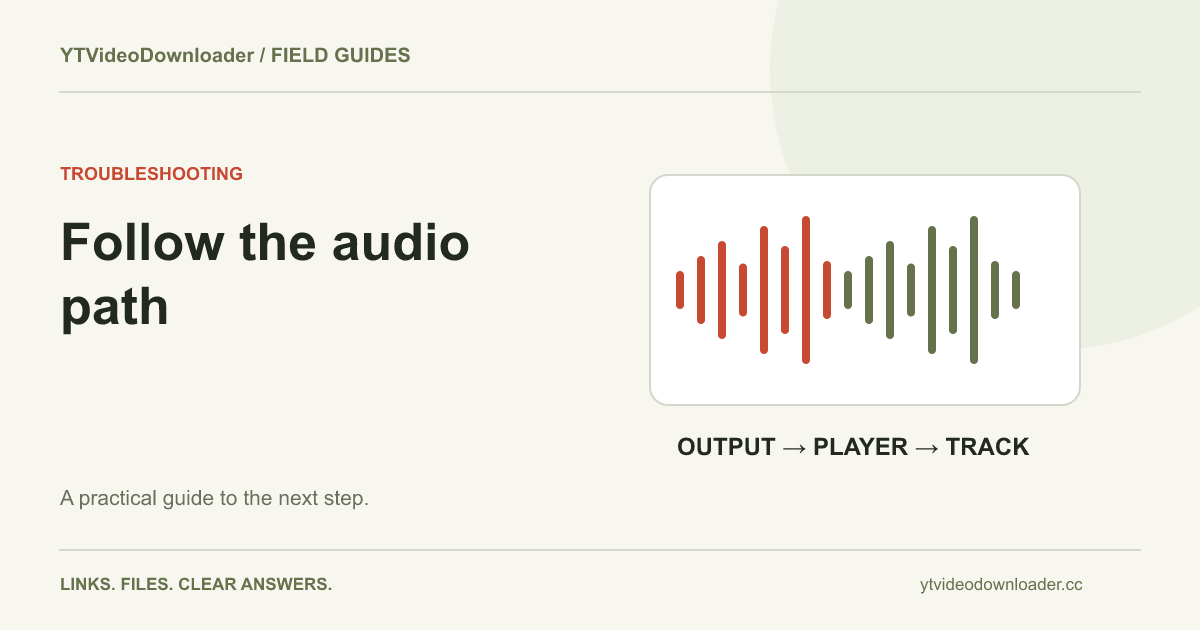
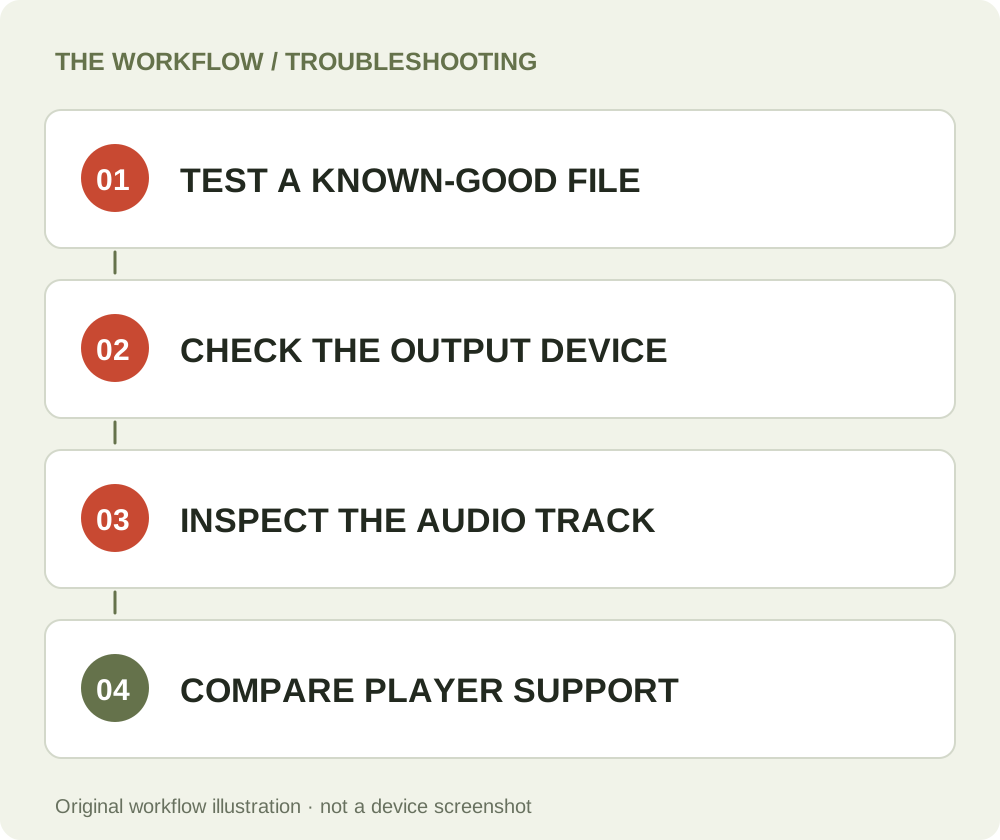
If an MP4 has no sound, check the playback environment before downloading the video again. Confirm that media volume is audible, the intended output device is selected, and another known-good file plays under the same conditions. Then check whether the downloaded file contains an audio track and whether the player supports it. A silent speaker, an unsupported audio track, and a file with no audio are different problems, even when the picture looks normal.
Establish whether the problem affects one file
Start with a local video or audio file that you already know has sound. Play it in the same application, with the same headphones or speakers, at the same time. If that reference is also silent, investigate the device or application settings first. Preparing a second copy of the original source will not normally change a muted output path.
If the reference works and only the new MP4 is silent, keep that result for comparison. Note whether all of it is silent or only a particular section. Check the source itself when available; some videos intentionally contain silent passages, and the soundtrack you remember may belong to a different version. A useful diagnosis changes one variable at a time rather than adjusting volume, changing players, and creating another download simultaneously. That way, a successful correction has a clear explanation.
Check volume at each relevant level
Volume can be controlled by the player, the browser or application, and the operating system. A mute control inside a video window can remain active even when the device's general volume looks normal. Inspect the actual player controls and the device's media output, not only a notification or ringtone volume indicator on a phone.
Use a comfortable level for the test rather than suddenly raising everything to maximum. Try the same short section after each adjustment. If the file plays in a browser tab, compare its controls with those of a local player. A browser preview and a downloaded file can be handled by different applications with different settings. Record which environment produces sound. The fact that one preview is silent does not establish that the underlying MP4 contains no audio, especially if another application can play the same saved file correctly.
Confirm where the audio is being sent
Connected headphones, Bluetooth speakers, an external display, or another audio interface can change the destination of playback. The expected speaker may be silent while sound is being sent elsewhere. Inspect the active output device and test a known-good file after selecting the intended destination. This is particularly useful after connecting a laptop to a monitor or moving between phone headphones and speaker playback.
If a different device is involved, check its own volume and connection state as well. Disconnecting an unused output or selecting the correct one can be a more useful test than another download. Keep the media file unchanged while making that comparison. If sound returns, you have identified an output-path issue rather than a source or transfer failure. That distinction helps avoid spending processing allowance on a problem that occurs only after the file is already on your device.
Inspect the audio track instead of guessing from MP4
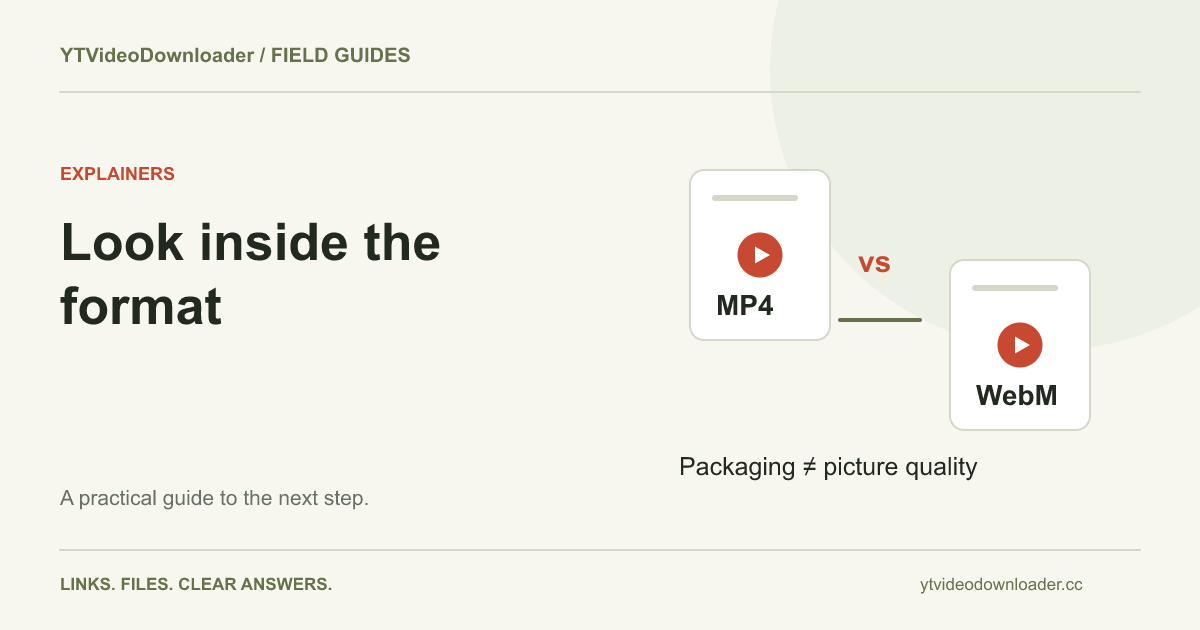
MP4 describes a container, not a guarantee of a particular soundtrack. A file can contain a video track, an audio track, multiple tracks, or a combination suited to a particular application. Where your player exposes media information, inspect whether an audio stream is listed and which stream is selected. Do not infer the presence of audio solely from the extension at the end of the filename.
MDN's audio codec guide explains encoded audio formats and their compatibility context. The practical question is whether this file's track exists and can be decoded by your application. A missing track and an unsupported track require different responses. If the file has selectable tracks, check that the intended one is enabled. Renaming the container or increasing a volume slider cannot manufacture an audio stream that is absent from the file.
Compare another trusted player already available
If the same file is silent in one application but audible in another, preserve that evidence. The file contains playable audio in at least one environment, so a blanket claim that the download has no soundtrack is too broad. Compare application support and settings, including track selection and whether the file is being opened as a linked asset inside a project.
You do not need to install an unfamiliar extension or upload the video to a random repair website merely to perform an initial comparison. Use a trusted player already present when possible. If you are preparing media for another person, test the application or device they actually need to use rather than assuming that your own playback proves universal compatibility. The MP4 versus WebM guide explains the separate roles of container, codec, and receiving application without treating either filename extension as a complete specification.
Check that the transfer actually completed
A partially saved file can have a plausible name while still lacking data required for normal playback. Return to the browser's downloads and inspect its status. Confirm that you opened the completed result rather than an unfinished item, an older duplicate, or a page saved under a similar title. A second download with a suffix can make this comparison confusing if you do not check dates.
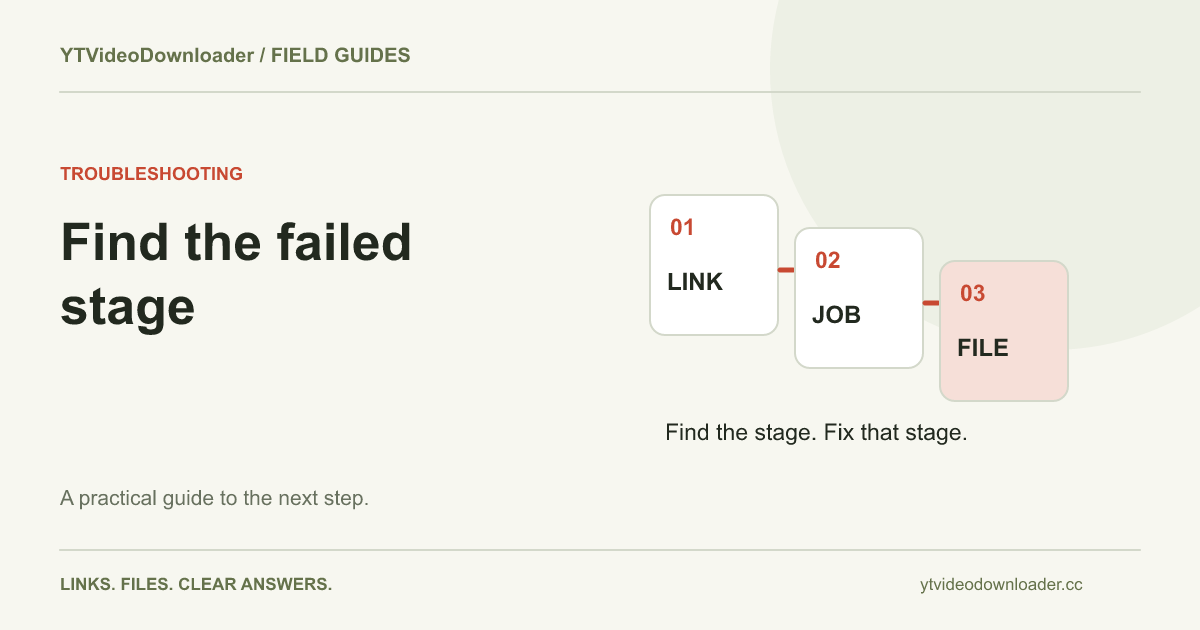
The download-failed checklist describes the difference between preparation and local transfer. While the service's temporary result is available, address the browser saving step using that result when appropriate. If it has expired, another preparation is a separate request. Do not change a partial file's extension or treat a visible thumbnail as proof of a complete transfer. Keep the original error message and browser status if you need support to investigate a delivery problem.
Separate playback from editing-project audio
An MP4 may play normally as a standalone file while appearing silent in an editor. A project can mute a track, disable an imported stream, route audio differently, or use settings that do not match the source. Compare standalone playback before deciding that the downloaded asset is defective. Then inspect the editor's imported media and timeline settings using that application's documentation.
Retain an untouched original outside the project. If you later convert or edit a working copy, use a new filename so you can distinguish the result from the original download. Do not overwrite the only file that demonstrates how the source behaved before changes. A project export without sound and a source MP4 without sound are different deliverables. Naming and keeping those stages separate makes a support conversation substantially more precise than sending several similarly named files with no explanation of their origin.
Know what another preparation can and cannot change
If the source has audio but the prepared result genuinely lacks it, report that mismatch with the task reference and a clear description. The service can investigate the source and preparation stage. If the saved file has audio that only one player cannot decode, another identical preparation may reproduce the same result without fixing the receiving application's support.
The YouTube to MP4 page describes the current service, which does not expose a manual codec-selection or audio-repair panel. Do not assume that buying credits creates those controls. The quality and file-size guide explains other properties that can differ between files. Choose your next action based on the evidence: output settings, a completed transfer, player compatibility, or a source/preparation mismatch. Each calls for a different test.
Send a useful audio problem report
Include the task or order reference when relevant, the approximate time, the source identifier, the player and device, whether a known-good file has sound, and whether another application plays the downloaded MP4 correctly. Say whether media information lists an audio track. If the problem affects only part of the clip or only an editor export, identify that stage explicitly.
Support does not need your Google password, browser cookies, or complete card information. Ask before attaching a large video, and avoid sending unrelated private media. The troubleshooting center and service contact details provide the next route. Once you have identified the cause, keep the verified file in a recognizable folder; the download-location guide helps if several copies have accumulated during the investigation.
Questions about this guide
Does MP4 always contain audio?
The extension alone does not establish which tracks exist. Inspect media information and compare the source when available.
Should I download again if one player is silent?
First compare volume, output device, completed transfer and another trusted player. A local compatibility problem may remain unchanged after another preparation.
Can the tool select another audio codec?
The current interface does not expose a manual codec-selection or general audio-repair panel.
download troubleshooting center
Use the relevant tool or troubleshooting reference when you are ready to continue.
Open download troubleshooting centerAbout this guide
Published and reviewed on November 3, 2026. Sources are linked beside the relevant explanations. Editorial and source review; physical mobile-device testing is not claimed. Illustrations explain the workflow and are not presented as device screenshots.