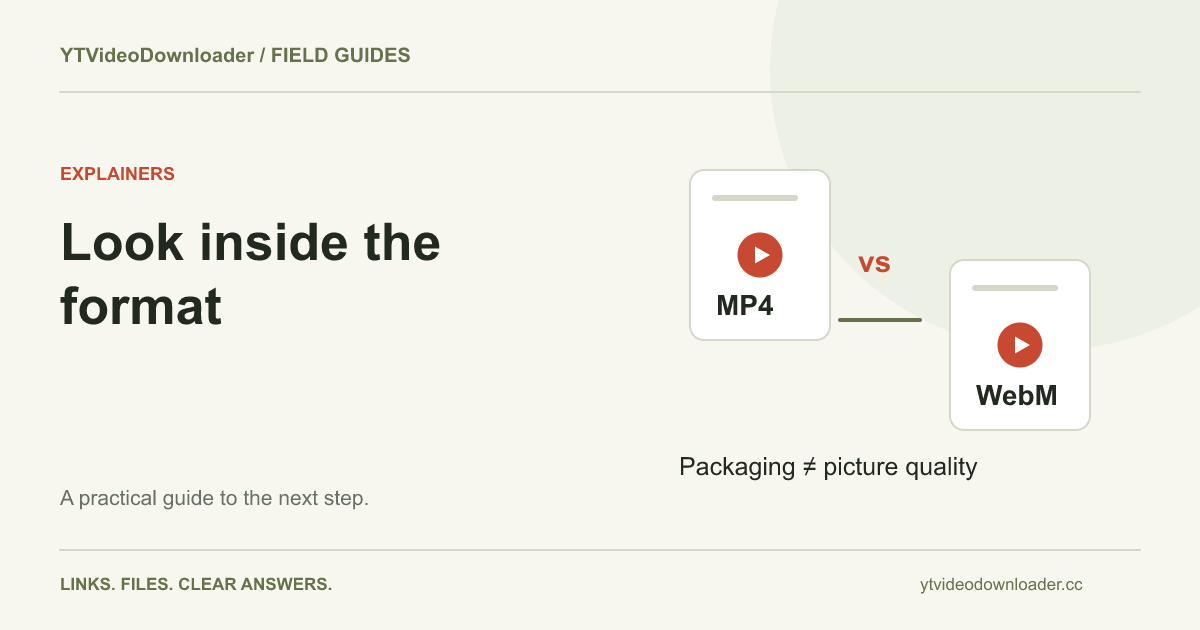
MP4 and WebM are video containers: they package encoded video, audio, and related information into a file. Neither name alone tells you the resolution, picture quality, exact size, or whether a particular editor will accept the contents. Choose by the application and device that must open the file, then consider the actual tracks and quality requirements. For this website, the YouTube to MP4 tool prepares supported MP4 output; WebM is discussed here for comparison, not offered as another export setting.
Separate the container from the encoded tracks
Think of the container as the file's packaging and the codecs as the methods used to encode its picture and sound. A receiving application needs to understand the relevant combination, not just recognize the filename. Two files with the same MP4 extension can behave differently because their tracks or encoding properties differ. The same general principle applies to WebM.
MDN's media-container reference explains this distinction. A practical file specification therefore includes more than an extension. If a client or editor requires a particular format, ask whether they mean a container, a video codec, an audio codec, dimensions, or an export preset. Getting that detail before processing is more efficient than finding out afterward that the requested “MP4” still does not meet the destination application's needs.
Compare formats using the same source and task
A meaningful comparison holds the task reasonably constant. If one sample is a short low-resolution clip and another is a long high-resolution recording, differences in size or appearance cannot be attributed simply to MP4 versus WebM. Compare duration, dimensions, frame rate, audio, and the intended viewing conditions. Otherwise the extension becomes an easy but misleading explanation for unrelated differences.
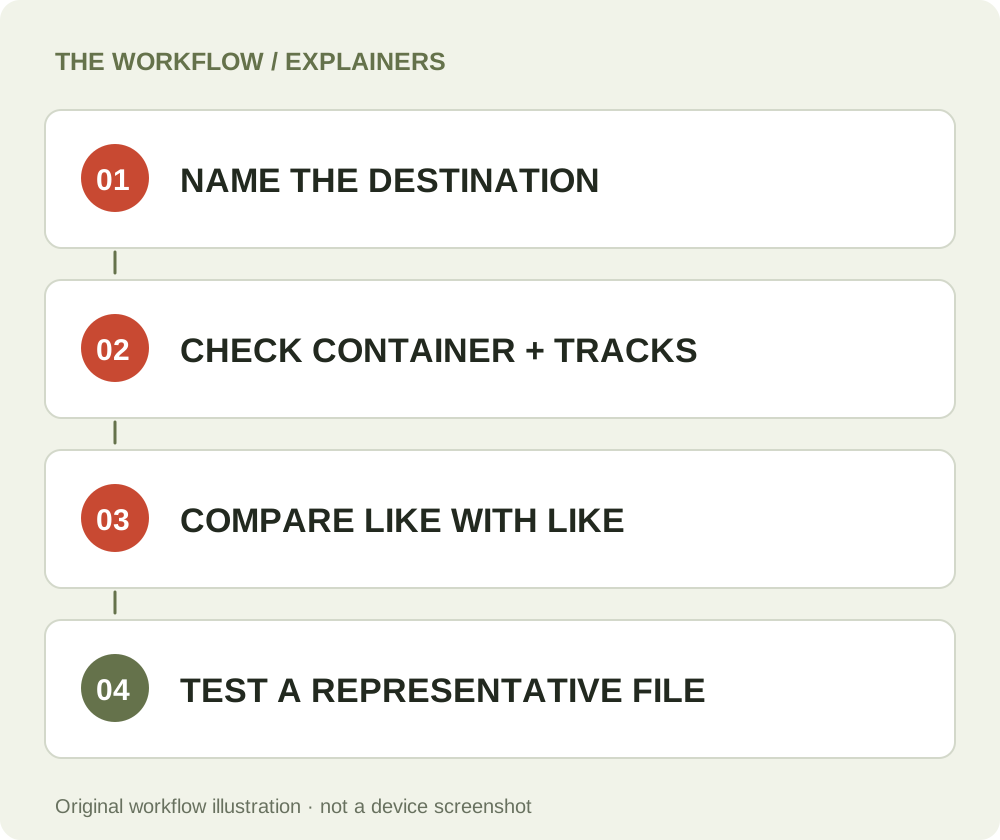
For example, a small preview for a project review and a detailed asset for later editing are different requirements even if both use MP4. Decide which one you need before judging a result. When testing two candidates, label them clearly and watch corresponding sections at a comparable display size. Inspect motion and fine details rather than relying only on a thumbnail. The video-quality guide provides a framework for separating resolution, compression, and source detail.
Playback compatibility is a destination question
If a video must open on several devices, identify the oldest or most constrained receiving environment rather than testing only your own newest browser. A file that works on one laptop does not establish that a phone, presentation system, or editing application can decode the same tracks. Ask the recipient what they will actually use and test a representative sample when possible.
A commonly used MP4 combination is H.264 video with AAC audio, but “MP4” alone is not a promise that every file uses it. WebM has its own container and codec combinations; support depends on the actual environment. MDN's video codec guide provides technical background. Avoid turning broad compatibility descriptions into universal guarantees. If an application rejects a file, inspect its specific requirements before deciding which property needs to change.
File size does not belong to the extension alone
Duration and encoded data rate are important to size, with overhead and track details also contributing. A larger file is not automatically a better version, and a smaller one is not automatically inferior for every purpose. Compression settings, source material, and the viewing task all affect whether a result is useful. A visually simple scene can require different treatment from detailed motion.
As an illustrative calculation, a total bitrate of two megabits per second over sixty seconds represents about fifteen decimal megabytes before container overhead. That arithmetic is not a prediction for a particular download or a claim about this website's output settings. It shows why comparing extensions without duration and bitrate can be misleading. If storage or transfer size matters, specify the actual task and inspect the actual file rather than assuming that every WebM must be smaller than every MP4.
Editing compatibility differs from watching
A player and an editor can have different needs. An application may play a video normally while another struggles to import, seek, preview, or export it in a project. The relevant question is not only whether a file opens, but whether it supports the operations your workflow requires. Check the receiving editor's supported media and project settings before preparing many assets.
Keep one unmodified source copy outside the editing project. Use separately named working files for conversions or exports so that you can identify where a problem first appeared. If the original has sound but an editor's export does not, compare the project and export settings before downloading the source again. The audio troubleshooting guide explains how to separate a source track, playback setting, and later editing-stage issue. A container comparison should help define the problem, not replace that investigation.
Changing a name does not convert the video
Renaming a file from WebM to MP4 changes its label, not its encoded structure. The same applies in reverse. An application may become more confused if a misleading extension no longer matches the contents. Preserve the correct original name while investigating what the destination actually needs. A real conversion or repackaging operation is different from a filename edit.
Re-encoding and repackaging are also different operations. The former changes encoded media; the latter can move compatible streams between supported containers without necessarily recreating every picture and audio sample. Whether either is possible or useful depends on the actual tracks and destination. This website does not expose a general-purpose conversion workbench for arbitrary uploaded files. If your task requires a prescribed export, use a suitable workflow with the right controls instead of assuming a different landing-page address will alter the same prepared output.
Use a small comparison checklist
Before choosing between files, write down the destination application, intended display, whether editing is required, approximate storage or transfer constraints, and any required track properties. Then inspect a sample under those conditions. A ten-second check in the actual target environment can reveal more than an extension-based preference formed without a specific use case.
For a team, share the requirements alongside the asset name. A note such as “for review in our browser presentation” describes a different target from “for a timeline edit with separate delivery settings.” Keep filenames and test notes connected so a later recipient can see which sample was checked. Do not label a file universally compatible merely because the first person opened it successfully. The goal is a reliable handoff for the chosen task, not a claim that one container always wins.
Apply the comparison to a downloaded result
After YT Video Downloader prepares a supported MP4, let the browser finish saving and open the local file. Check the picture and sound before moving it into a project or sending it onward. If you cannot find it, the file-location guide is more useful than a container conversion. If the transfer never completed, use the download-failed checklist first.
If the file is complete but one application rejects it, compare that application's requirements with the media information you can inspect. Do not assume that selecting another source or buying another preparation changes the export controls available here. The pricing page explains the current processing offer and purchase availability. Credits represent processing allowance, not a general promise to produce every codec, container, or editing preset a downstream application might request.
Choose for the work you need to finish
For a supported link-to-file task on this website, MP4 is the available result. For a broader web or editing project, decide between MP4, WebM, or another workflow using the actual receiving environment and technical requirements. Neither extension is a shortcut around missing source detail, an incomplete transfer, or an audio-routing problem.
Retain a verified original, name working copies clearly, and test before scaling a workflow to many files. If you need help, describe the container, any known track information, the application, and the exact stage that fails. Those details make a technical discussion productive without relying on vague claims about “better quality.” When the task is simply a supported YouTube link saved to a device, return to the MP4 converter and verify the result in the environment where you intend to use it.
Questions about this guide
Is MP4 always higher quality than WebM?
No. Compare the source, encoded tracks, dimensions, compression and use case rather than the extension alone.
Can I convert WebM by renaming it MP4?
No. Renaming changes the label rather than the container structure or encoded media.
Does this site offer a WebM export option?
No. WebM is discussed for comparison; the current tool prepares supported MP4 output.
YouTube to MP4 converter
Use the relevant tool or troubleshooting reference when you are ready to continue.
Open YouTube to MP4 converterAbout this guide
Published and reviewed on November 3, 2026. Sources are linked beside the relevant explanations. Editorial and source review; physical mobile-device testing is not claimed. Illustrations explain the workflow and are not presented as device screenshots.