YouTube video quality and downloaded file size depend on more than a resolution label. Dimensions, frame rate, bitrate, compression, the original recording, and the prepared output all matter. Start with the use you need to complete: a phone preview, a presentation, and a detailed editing asset can require different results. This guide explains those properties so you can judge a saved MP4 without assuming that a larger number or a larger file always means a better picture.
Resolution describes dimensions, not the whole picture
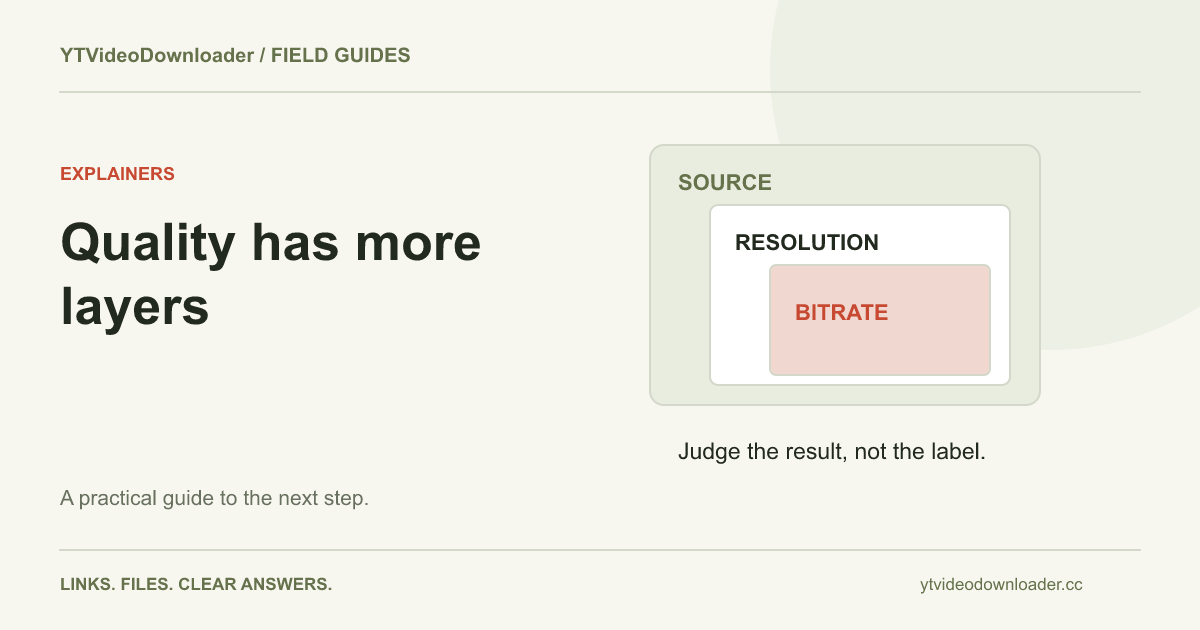
Labels such as 720p and 1080p are commonly associated with picture dimensions, but dimensions alone do not tell you how much real detail survives. A blurry recording can be stored in a large frame. Enlarging that frame does not recreate fine text, texture, or faces that were never captured clearly. Compare the source and the saved result at a relevant viewing size rather than treating a label as a complete quality score.
For a presentation, readable text and stable motion may matter more than the largest advertised dimensions. For a phone review, the useful viewing area is smaller than a large monitor. Identify those conditions before judging a file. A result can be suitable for one purpose and inadequate for another without either observation being wrong. The practical question is what information your task needs to preserve, not which number sounds most impressive in a filename.
Bitrate describes data over time
Bitrate expresses how much encoded data is used per unit of time. At a given duration, a higher total bitrate generally implies more data to store, but it does not independently prove a better result. Different encoding methods and settings can use data differently, and source complexity affects how challenging a scene is to represent.
A helpful illustration uses round numbers: two megabits per second for sixty seconds is one hundred twenty megabits, or about fifteen decimal megabytes before overhead. Audio and packaging can contribute additional data depending on what the chosen rate includes. This arithmetic is illustrative, not a measurement of a video from this website. Use it to understand the relationship between duration, rate, and size. Do not infer a particular source's output from the example or mistake megabits for megabytes when comparing specifications.
Motion and frame rate change the task
A static lecture slide and a rapidly moving scene can have very different visual demands. Fine patterns, camera motion, and changing detail can reveal compression artifacts differently from a mostly still picture. Inspect the sections that matter to your use rather than only the opening thumbnail or a paused frame.
Frame rate describes how frequently images are presented, but a larger value is not a universal improvement for every source or destination. It also needs to match the material and intended playback. Turning one recording into a file with another frame-rate label does not automatically create authentic missing motion detail. If you have a prescribed editing or delivery specification, identify it before selecting a workflow. The current tool does not provide a frame-rate or resolution menu, so the source and available compatible preparation determine what result can be offered.
Compression and the original recording set limits
Many ordinary delivery formats use lossy compression, which trades some information for practical storage or transfer size. Repeated processing can add another opportunity for change, so preserve the best appropriate source you have. An output with larger dimensions or a bigger bitrate cannot guarantee recovery of detail already absent from an earlier recording or compressed copy.
MDN's video codec reference provides background on compression methods. For a working project, the useful habit is to keep an original and name derivatives separately. If you receive a file from a creator, ask whether it is a production source or a publication copy when that distinction matters. Do not overwrite your only good asset while experimenting. A clear chain from source to working copy to final export makes later quality questions easier to answer.
The container is not a quality setting
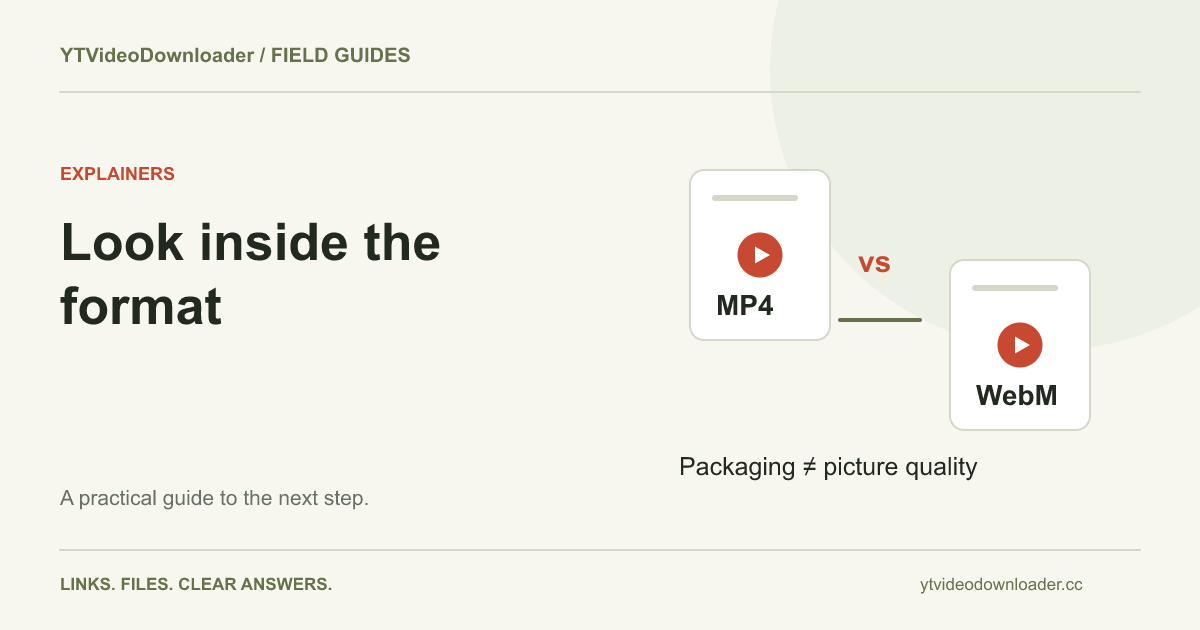
MP4 is a file container, not a resolution, bitrate, or promise of a particular codec. A filename ending in MP4 can describe many different media combinations. The same general distinction applies to WebM. Choose according to the actual receiving application and task rather than assuming that one extension determines every property of the picture.
The MP4 versus WebM guide separates packaging from encoded tracks and compatibility. If two files look different, compare their source, duration, dimensions, and other properties before attributing the difference to their containers. If a file is complete but cannot play in a particular application, that may be a compatibility problem rather than a picture-quality problem. If there is no sound, use the audio checklist instead of changing a resolution assumption that may have nothing to do with the issue.
Compare the same moment under the same conditions
For a useful visual check, choose a representative section: fine lettering, movement, a face, or another feature relevant to the job. Display candidate files at a comparable size and avoid comparing a small fitted preview with a heavily zoomed image. Scaling performed by a player can affect what you perceive even when the stored file is unchanged.
Record what you are evaluating. “The slide text is unreadable at presentation size” is more actionable than “the quality is bad.” A local playback problem that drops frames is different from missing detail encoded into the file. Try to distinguish the actual content from the application's display or performance. Keep a short note describing the application and screen conditions so someone else can reproduce the comparison. This turns a vague preference into a practical requirement for the next export or source request.
Use file size as evidence, not a verdict
A small file can be enough for a short, simple task; a larger one can still contain poor source material. Duration is essential context. Comparing a twenty-second clip with a ten-minute recording solely by their sizes tells you little about efficiency or visual quality. Include the length and intended use whenever storage or transfer size is part of a discussion.
A partly saved file is a separate case. If the browser did not finish transferring all of the result, a surprisingly small item may be incomplete rather than efficiently compressed. Check the download status before treating its size as an intentional output. The download-failed guide describes that distinction. Renaming a partial item or opening a thumbnail cannot provide missing data. Confirm completion, then evaluate the media itself. That order prevents a transfer error from being misdiagnosed as an encoding-quality choice.
Understand the current tool's output
The YouTube to MP4 converter prepares supported MP4 results without exposing manual quality, bitrate, or codec presets. It should not be interpreted as a guaranteed 1080p, 4K, or 60fps exporter. The pricing page describes the current processing offer; a larger credit package, when available, changes allowance rather than automatically changing the output settings for a job.
This makes the tool suitable for tasks that fit its actual supported result. If a project requires a precisely specified master file, an original supplied by the creator or a workflow with appropriate export controls may be the relevant choice. Identify that need early. After receiving a result, finish saving it, open it locally, and check the representative section you selected. If the destination is unclear, follow the download-location guide before requesting another preparation.
Build a practical acceptance checklist
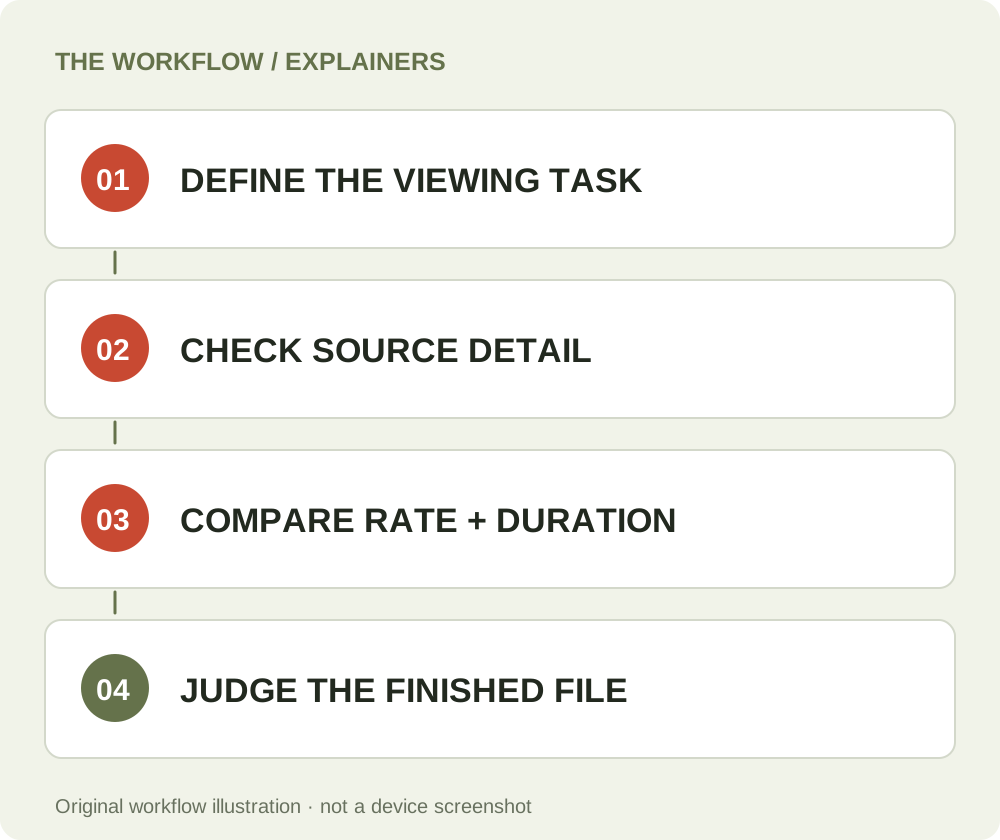
For a clip you intend to use, check that the source is correct, the transfer is complete, the picture contains the needed detail, audio behaves as expected, and the receiving application can handle the file. Add any project-specific requirements such as readable text or a required orientation. A checklist tied to your actual task is more useful than a general demand for the largest resolution label.
Keep the accepted file and source reference together. If you report a problem, describe the visible defect, its position in the clip, the browser or player, and whether the same issue appears in the source. Do not claim a measured bitrate or tested device unless you actually inspected it. When the source and requirements match the service, use YT Video Downloader for one supported preparation and judge the completed MP4 against those concrete checks. That gives the file a clear purpose and a result you can verify.
Questions about this guide
Does 1080p guarantee a clear picture?
No. Dimensions alone do not establish source detail or compression quality. Inspect the sections important to your task.
Is a larger file always better?
No. Duration, encoded data rate, source material and the intended use all affect that comparison.
Can I choose 4K or 60fps here?
The current tool does not expose those export selectors or promise a specific resolution or frame rate.
YouTube to MP4 converter
Use the relevant tool or troubleshooting reference when you are ready to continue.
Open YouTube to MP4 converterAbout this guide
Published and reviewed on November 3, 2026. Sources are linked beside the relevant explanations. Editorial and source review; physical mobile-device testing is not claimed. Illustrations explain the workflow and are not presented as device screenshots.