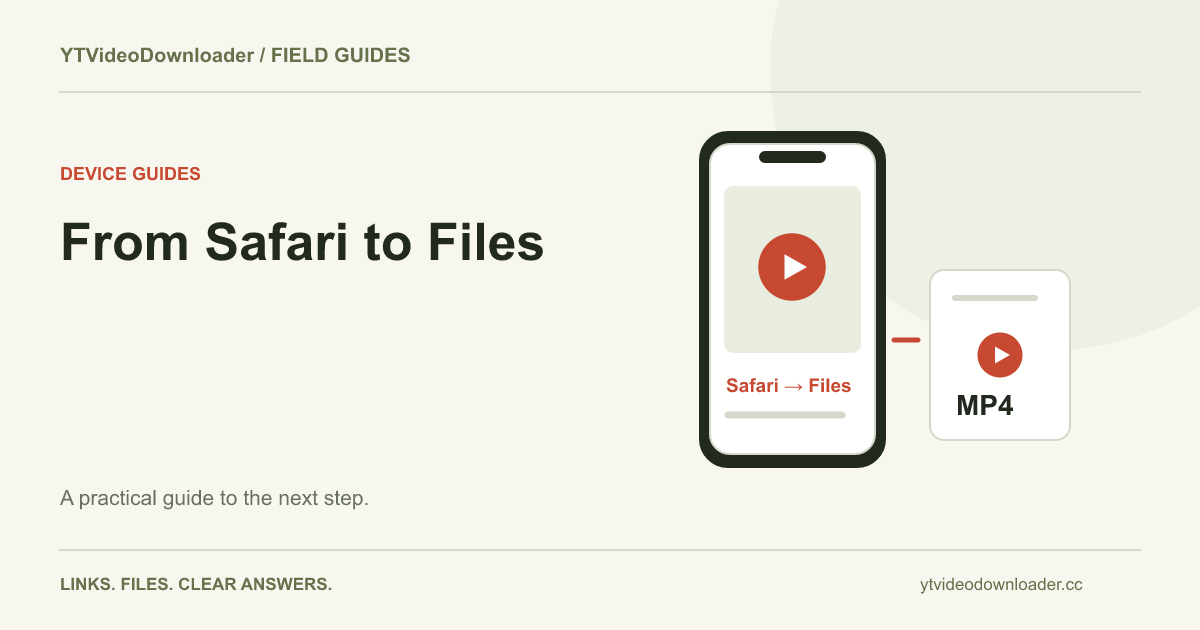
To download YouTube videos on iPhone as a local file, copy a supported video link, open the YouTube to MP4 tool in Safari, prepare the file, and use Download MP4 when it appears. Then check Safari's downloads and the Files app before looking in Photos. A browser file and a video in your photo library are different things. The walkthrough below explains that distinction and how to keep track of a completed save.
Start in Safari with the individual video link
Use the share action on the video you intend to save and copy its URL. Open Safari directly and visit YTVideoDownloader, rather than completing the task inside a social application's embedded browser. A separate Safari tab gives you a clearer place to track the preparation status and the later download. Paste the link into the URL field and confirm that the address belongs to one video, not a channel or collection.
A regular watch link, a youtu.be sharing address, or a supported Shorts address can identify the source. For a Short, the phone Shorts guide explains the input more specifically. Keep the source page available so you can compare the intended clip with the downloaded result. This guide concerns supported content you can appropriately download; the source and permission guide explains that separate question without changing the saving steps.
Prepare the MP4 and wait for the result
Select Prepare MP4 after reviewing the pasted address. Keep that processing tab open and read the status it returns. A submitted link is not yet a saved video. You need the result area to offer Download MP4 before the local transfer can begin. Repeated taps or additional tabs can make it harder to identify which request you are following.
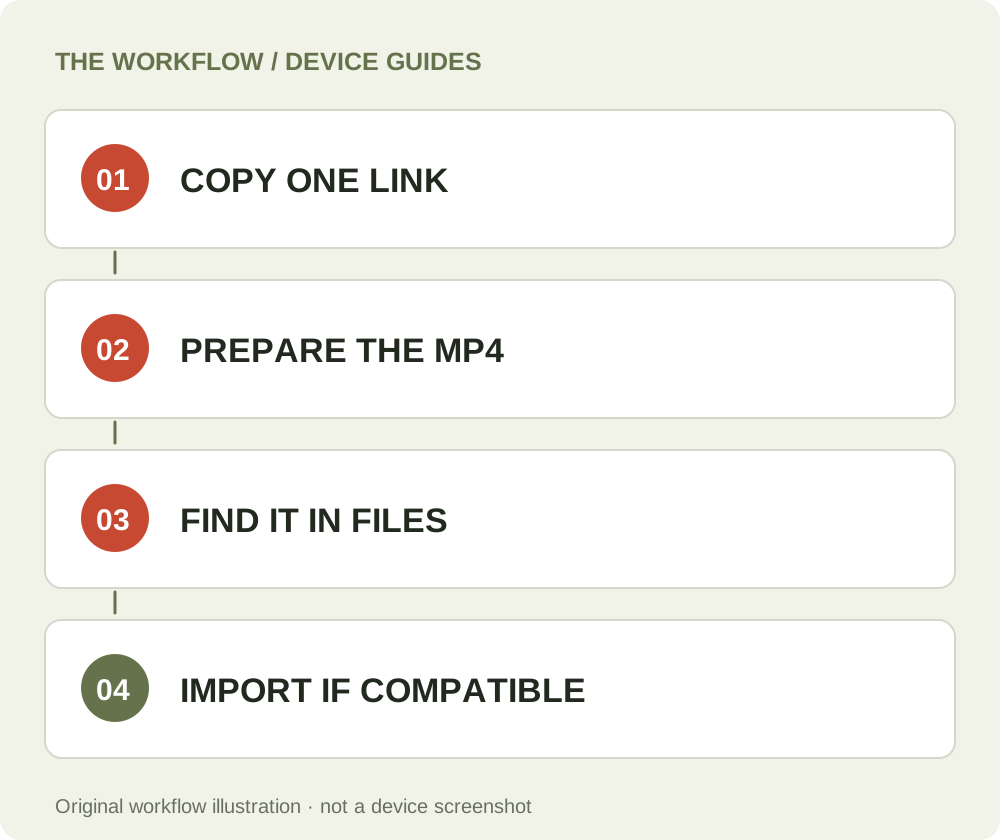
If the tool reports a problem, deal with that message before changing Safari's storage settings. A source that cannot be prepared will not be fixed by opening the Files app. The download-failed checklist separates input, processing, and transfer problems. Once a file is ready, use the result while its temporary link is available. If you want to leave the page, finish and verify the local save first rather than assuming that returning to an old browser tab will preserve the service's copy indefinitely.
Follow the browser's saving action
Tap Download MP4 when the result is available. Safari may present a download confirmation or open a media view depending on the response and your browser behavior. Follow the saving control shown by your version of Safari. If a media preview opens, inspect its available share or save actions; do not mistake playback in a tab for confirmation that a file has been stored locally.
Look for Safari's download status and allow the transfer to complete. The exact location of controls can vary with the browser layout and iOS version, so use the labels and visible actions rather than relying only on the position of an icon. A slow transfer is different from a processing job still waiting to produce a file. Keep those stages separate when reporting a problem. There is no requirement to install a browser extension to use the site's link-to-file form.
Find the MP4 in Files
Apple's download-location instructions point iPhone users to the Files app and its Downloads folder. In Files, inspect Browse and the storage location used by Safari. Depending on your settings, that may be iCloud Drive or local device storage. Safari's own downloads list is another useful route to a file that has just finished saving.
If you see several files with similar names, compare the recent date and inspect the actual file rather than choosing the first search result. A duplicate-name suffix can indicate that you saved another copy, while a partially completed transfer may not be the playable result you expect. Open the file and check that its picture and duration match your source. The cross-device file guide provides a broader explanation if you use the same workflow on a phone and a computer.
Move a compatible video into Photos when available
Saving an MP4 through a browser does not guarantee that it appears in Photos. First establish that you have a completed local file in Files. Open its preview or share menu and look for the available Save Video action. If your device offers that action for the file, use it and then check Photos. Labels and availability can vary, and a missing action should not be treated as proof that the source link needs to be processed again.
Photos import also depends on whether the device can handle the video's actual media format. An MP4 filename alone does not describe every codec or track inside it. If the file opens in one player but cannot be imported into another application, that is a compatibility question. Keep the working original while investigating. Do not change its extension to force an import, and do not delete your only saved copy merely because the Photos library has not displayed it yet.
Understand local storage and iCloud storage
A file listed in a cloud-backed folder may still need to be downloaded to the device before it is usable without a connection. Conversely, a file stored only on the phone is not automatically backed up merely because you can see its name in Files. Decide whether you need a working local copy for travel, a cloud copy for another device, or both.
For an important clip, open it before you leave the network on which you prepared it and check that the device can actually play the saved copy. Use the file manager's relevant availability controls if you need offline access to a cloud item. This is a device-storage decision rather than another feature of the processing website. Keep a simple folder name and a recognizable filename so you can distinguish the file from a bookmark, a screenshot, or a similarly titled source page later.
Fix the symptom you actually have
If no Download MP4 result ever appeared, inspect the preparation message. If the browser shows an interrupted transfer, check its downloads and available storage. If a completed file exists but is not in Photos, inspect the import action and media compatibility. If the picture plays without sound, follow the MP4 audio checks before requesting another copy.
These cases can look similar when the only description is “nothing saved.” The difference matters because only some require another preparation. While a temporary result remains available, you may be able to complete the browser save using that same result. If the link has expired, a new preparation is a separate request under the current service rules. Review pricing and credit explanations when allowance is relevant rather than assuming an account-history entry is a permanent file-storage link.
Keep the workflow manageable on a phone
Work with one clip at a time: copy, prepare, save, verify, then organize. Before starting, choose whether your final destination is a project folder in Files or a compatible copy in Photos. After saving, give the file a meaningful name and keep the original link in a note if you need to identify the source later. Those small decisions are more useful than opening many browser tabs and trying to sort unidentified downloads afterward.
If a permission prompt or a mobile application interrupts the process, return to the tab holding the active result rather than beginning again automatically. For a support request, record the browser, iOS version, approximate time, message, and last completed step. A cropped screenshot of the relevant control is helpful; a password or complete screen recording of unrelated applications is not needed. Use the contact route in the footer for account or delivery questions.
What was checked for this guide
The website form and link labels are based on the current YTVideoDownloader interface. The iPhone file-location guidance was checked against the linked Apple documentation. The diagrams are workflow illustrations, not screenshots of a claimed iPhone test session. No physical iPhone or iOS release is represented as tested in this article. This distinction matters because mobile controls can change without the site's form changing.
For an alternative device, read the Android walkthrough or PC and Mac guide. For a source already selected and a clear save destination, return to YT Video Downloader, paste one supported link, and follow the status through to a verified local file. Your final check should be the MP4 on your device, not only a successful-looking page.
Questions about this guide
Why is the MP4 in Files but not Photos?
A browser save and a photo-library import are separate. First verify the saved file, then inspect the available import or Save Video action for a compatible video.
Does this require an extension?
The website form does not require a browser extension. Use the browser saving controls after the MP4 is ready.
Were these steps tested on a physical iPhone?
No. Device instructions are documentation-based and the images are workflow illustrations. No specific iOS version is claimed as physically tested.
YouTube to MP4 converter
Use the relevant tool or troubleshooting reference when you are ready to continue.
Open YouTube to MP4 converterAbout this guide
Published and reviewed on November 3, 2026. Sources are linked beside the relevant explanations. Editorial and source review; physical mobile-device testing is not claimed. Illustrations explain the workflow and are not presented as device screenshots.