To download YouTube videos on Android, copy the individual video link, open the YouTube to MP4 converter in your browser, prepare the result, and save the MP4 when its download link appears. Start by checking the browser's download list and your file manager. A video can be saved successfully without immediately appearing in a gallery application. This guide follows the route from a shared URL to a file you can identify and open.
Copy a video link rather than a collection
Open the specific video you want and use its share controls to copy the link. A channel homepage, playlist, or search result is not a substitute for the address of one video. Check the beginning of the pasted URL before submitting it, especially if you copied it from a message containing commentary or punctuation. The field expects a link, not the video's title.
Ordinary YouTube watch links, youtu.be sharing links, and supported Shorts addresses can identify an individual source. For vertical short-form content, use the Shorts phone guide. Keep your intended source available in another tab if you need to compare it with the final file. If you have questions about the permission associated with a source or your later use, review the download-rights guide before choosing a workflow.
Open the tool in a browser you can return to
Launch Chrome or your chosen full browser and open YTVideoDownloader directly. Embedded browsers inside messaging or social applications can make it harder to keep a stable processing tab and find their download controls. A full browser gives you a more obvious place to inspect the request, follow a transfer, and return to a saved entry.
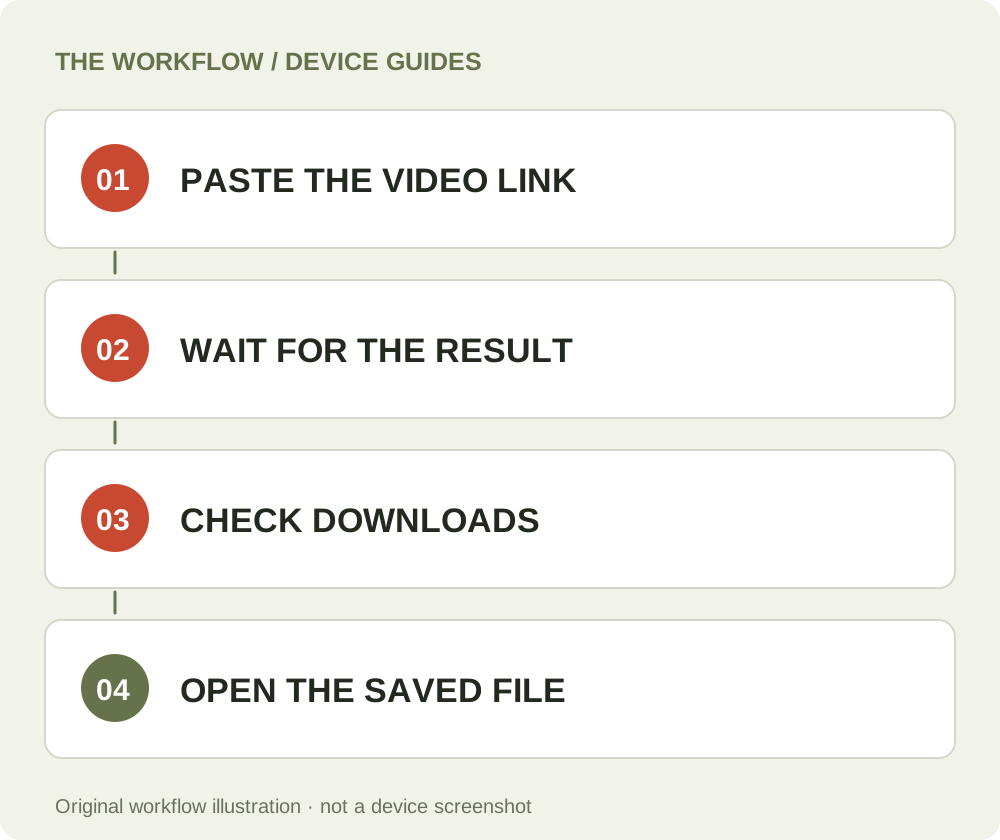
Paste the video URL into the tool and choose Prepare MP4. Keep the tab open while the website reports progress. Avoid starting the same request in several tabs because that creates confusing status screens without creating separate processing capacity. If the site reports that a link cannot be processed, read that message before inspecting Android folders. Local storage cannot contain a result that was never prepared. The download-failed article explains this distinction in more detail.
Save the result and inspect the transfer
Once Download MP4 appears, select it and follow the browser's saving action. Depending on the browser and Android version, you may see a prompt about the destination or a transfer notification. Let the transfer complete rather than assuming that selecting the link has already written the full video to storage. Preparation and browser downloading are separate operations.
Chrome's official Android download guide describes its download controls. Use the browser's downloads list to inspect whether the item is finished, paused, or canceled. If the source has been prepared but a transfer stops, work on that transfer while the result link is still valid. There is no need to request another preparation solely because you have not yet found the local file. A useful diagnosis identifies the stage that actually needs attention.
Locate the MP4 in your file manager
Open the file-management application provided by your phone. Its name and layout vary by manufacturer; it may be called Files, My Files, or something similar. Look in Downloads or the relevant recent-files view. Google also documents finding files on Android. Use the browser's completed entry as a starting point when several storage locations look similar.
Compare the file's date, size, and name with the transfer you just completed. A second save may have received a suffix to avoid overwriting the first copy. Open the item to check the picture and duration before moving or renaming it. If the file manager shows only a partial or unfinished item, return to the transfer status. A filename ending in MP4 does not by itself prove that a download completed. For multiple devices, the file-location guide helps separate browser storage from application-managed media.
Why the video may not appear in Gallery
A gallery application is not simply a view of every file on your phone. It can present selected folders, indexed media, or cloud-backed collections. A browser download in a file-management folder may therefore be absent from the gallery even when the file is present and playable. Start by opening it from the file manager to establish whether saving actually succeeded.
If you want the clip visible in a preferred media application, use that application's import, folder, or sharing controls when available. Do not move files into arbitrary protected folders or change an extension in the hope of forcing recognition. Keep the original until the destination application has accepted and played the copy. If one player works and another does not, compare media compatibility rather than immediately blaming the source URL. The MP4 versus WebM explanation shows why a format name is only one part of that question.
Choose the destination before storage becomes crowded
Phones can offer internal storage, removable storage, and cloud folders, and a completed browser save may not go to the place you last inspected. Check the current destination instead of assuming that a download on this device will follow the same settings as a previous phone. If a destination is unavailable or full, resolve that condition before repeating a transfer.
For a project, make one recognizable folder and use descriptive filenames. A topic plus a short source description is often easier to search than a series of generic video names. Keep a note of the original link if the source needs to be traceable later. Organizing a local file does not require another visit to the processing server. After you have a verified MP4, use your device's normal file tools to move, copy, or share it as appropriate for your work.
Account for mobile connectivity and background behavior
A phone can change networks or reduce background activity while a request is active. If you switch away from the browser, return to the original tab and read its current state before submitting anything again. A delayed status display and a server-side failure are not necessarily the same event. Keep the browser visible during a short preparation when practical, then complete the local save before leaving the result.
An interrupted download can also happen after preparation has succeeded. Check whether the browser offers an appropriate transfer action while the temporary link remains available. A later return after expiry is a different situation: the server's copy is no longer a permanent destination. Keep the saved MP4 if you want to retain it. The pricing explanation distinguishes processing credits from file storage and describes current purchase availability; it should not be interpreted as a promise of unlimited retention.
Diagnose picture, sound, and application issues separately
If the saved file opens but has no sound, first inspect media volume and the selected output device. Connected headphones or a Bluetooth device can make a working audio track seem silent. Try a known-good local media file under the same conditions, then compare the downloaded result. The MP4 no-sound guide offers a more detailed sequence.
If the video does not open at all, confirm that the transfer finished and that the file you selected is the downloaded result rather than a webpage or shortcut. Different applications can support different combinations of video and audio tracks. Preserve the original while checking another trusted player already available on your device. Do not repeatedly process a source just to compensate for a local application that cannot open its media. Describe the actual symptom when you ask for help.
Use a repeatable final check
A finished workflow has three pieces of evidence: a prepared result on the website, a completed transfer in the browser, and a playable MP4 on the phone. Check all three before deleting tabs or reorganizing files. If you contact support, include the browser, Android version, approximate time, exact message, and the last successful step. Add an order or task reference when account records are involved, but never a password or session cookie.
This article's platform guidance is documentation-based. Its illustrations show a workflow rather than a claimed Android device test, and manufacturer-specific menus may differ. For another device, consult the iPhone guide or PC and Mac guide. When the source and destination are ready, return to YT Video Downloader and work through one supported video at a time.
Questions about this guide
Why does the file not appear in Gallery?
A gallery may show selected or indexed folders. Confirm the MP4 in the file manager before investigating the gallery display.
Where should I check first?
Inspect the browser downloads list, then the destination in the file-management app on that phone.
Were these steps tested on a physical Android phone?
No. This guide uses linked platform documentation and clearly labeled illustrations; manufacturer menus can differ.
YouTube to MP4 converter
Use the relevant tool or troubleshooting reference when you are ready to continue.
Open YouTube to MP4 converterAbout this guide
Published and reviewed on November 3, 2026. Sources are linked beside the relevant explanations. Editorial and source review; physical mobile-device testing is not claimed. Illustrations explain the workflow and are not presented as device screenshots.