A YT video download without watermark should save the supported video without adding a new downloader logo. It does not mean erasing a logo already embedded in the picture, removing an editor's export stamp, or recovering an original camera file. Start with the source you want to keep, prepare a supported MP4, then check the saved file itself. This guide explains what to inspect before and after using the YouTube to MP4 converter, including how to judge HD claims without confusing resolution with watermark removal.
What without watermark means for a saved video
There are three different things people call a watermark. A creator can export a logo as part of every video frame. A platform can display an interface element above the playing picture. A downloader or editor can add its own branding when creating a file. These have different causes, so a single promise about a clean download cannot explain all three. Identify where the mark originates before choosing a workflow or buying access.
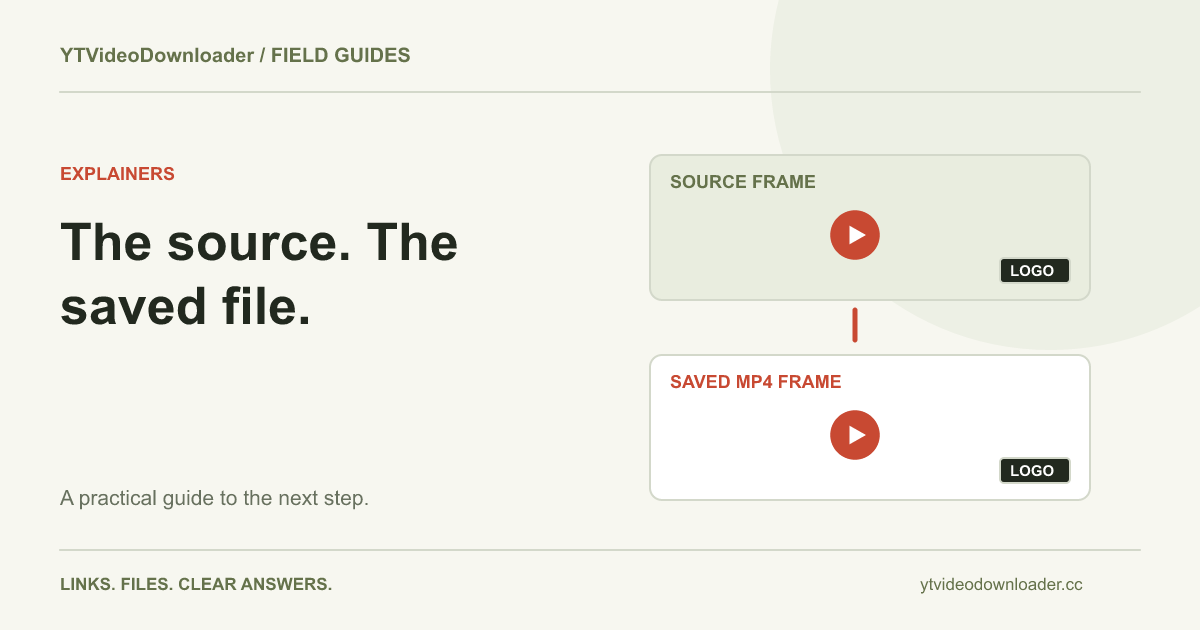
The current YTVideoDownloader video preparation code requests the supported source streams and packages the result as MP4; it has no configured branding-overlay or watermark-removal step. That is an implementation observation, not a new test of every available source. If a creator's logo is already encoded into the frames, ordinary preparation preserves that picture. If you own the project and need an unbranded version, exporting again from the original editing project is a more direct solution than repeatedly converting an already branded copy.
Separate player branding from marks inside the picture
A screenshot of the YouTube player does not show only the video file. Playback controls, channel elements, subtitles and other interface layers can appear around or over the picture. YouTube's channel branding instructions describe a configurable channel watermark displayed during playback. That feature should not be treated as evidence that every visible channel icon is burned into the source frames. The same distinction applies when evaluating a screenshot someone sends you.
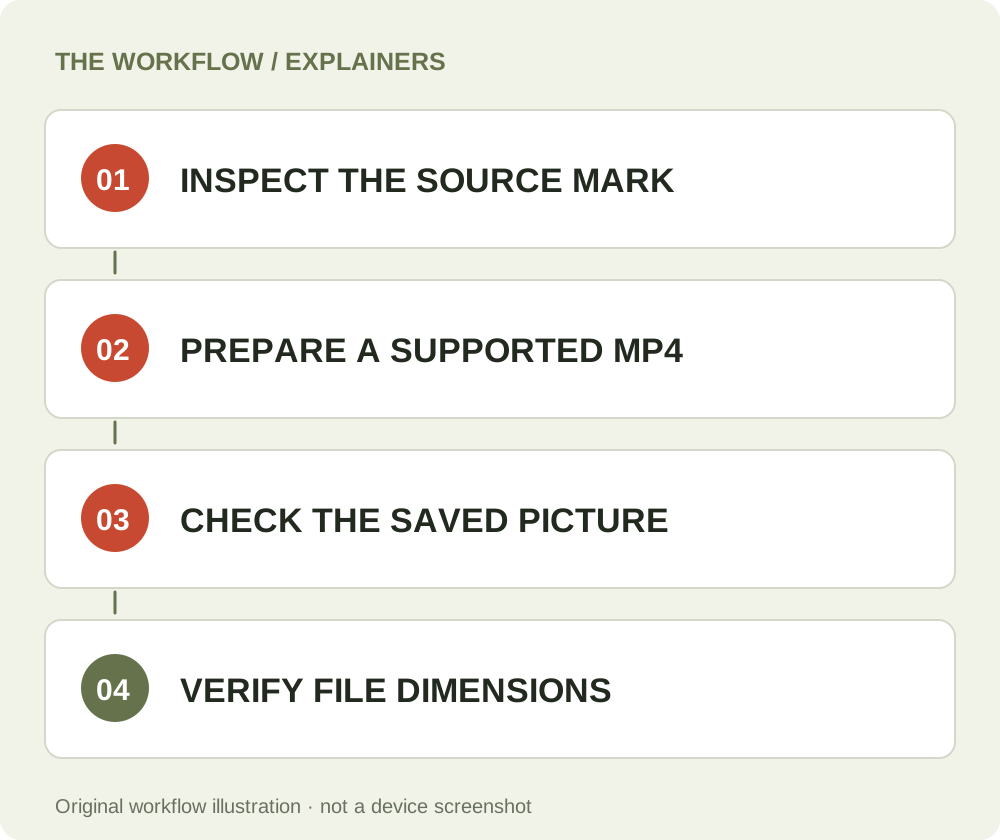
Compare the same moment in the saved local video using a separate player. If an icon is absent there, it may have belonged to the playback interface rather than the encoded image. If it remains in the picture at the same position, changing the filename or choosing another MP4 player will not remove those pixels. Keep the comparison focused on one recognizable scene; comparing unrelated frames can make a moving or intermittent mark look as though it disappeared.
Check HD quality separately from watermark status
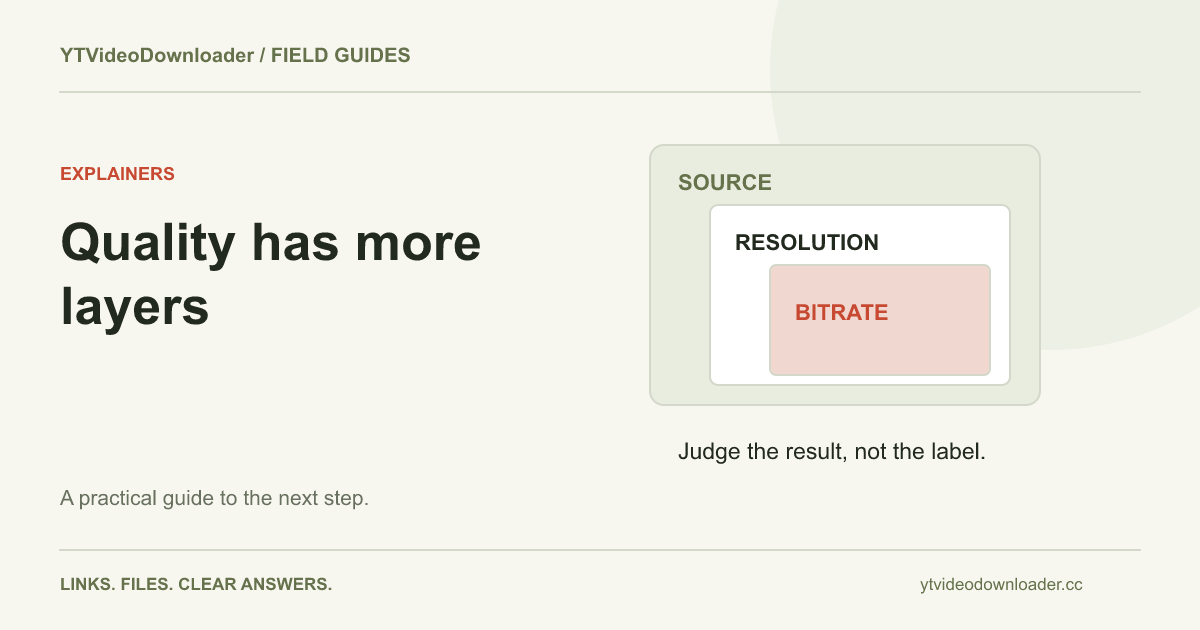
A search for YT video download without watermark HD combines two independent requirements: no added branding and a useful picture resolution. A clean frame can still be low resolution, and a sharp frame can still contain the creator's logo. YouTube's resolution and aspect-ratio reference lists 1280 by 720 and 1920 by 1080 for common landscape HD formats. Those dimensions describe frame size, not a guarantee that this downloader delivers either setting for every source.
YouTube also explains that available playback quality depends on the original upload and viewing conditions. A browser playing a sharp version does not prove that another service will select the same stream. This site's current video form does not offer a resolution picker or guarantee the highest quality visible in YouTube. Check the resulting file's dimensions before deciding whether it fits your project. For a broader explanation, read the video quality and file size guide.
Prepare one supported link as MP4
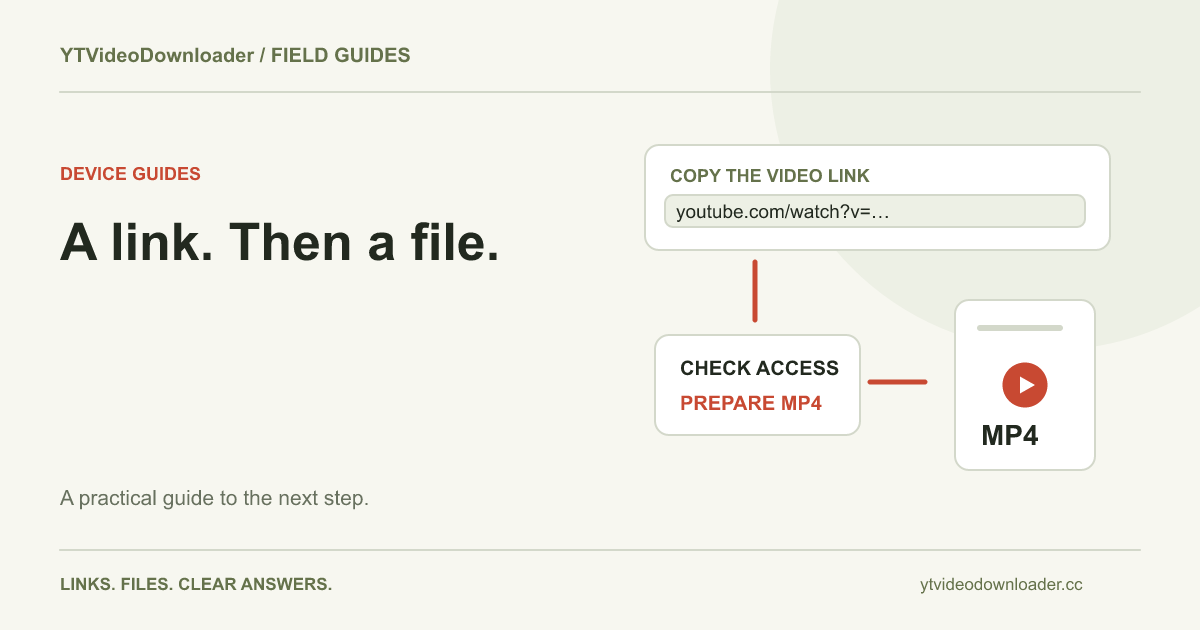
Open the individual video you want and copy its sharing address. Use a regular watch link, a supported short sharing link, or an individual Shorts address rather than a channel page or playlist collection. Paste the address into the MP4 tool and confirm that it points to the intended source. If copying the right address is the uncertain step, the copied-link download guide explains the difference between identifying a video and saving its file.
Sign in with the Google account you want associated with the task. Review the access currently shown for that account, then submit one preparation and wait for the result. When the file is ready, choose the download action and let your browser finish the transfer. The current plans page covers available access and billing. This article does not promise permanently free processing or attach a changing package price to the meaning of without watermark.
Handle Shorts without cropping the useful picture
For a short vertical source, the YouTube Shorts downloader provides the relevant starting point. A portrait video is not a landscape video that needs its sides stretched until the screen is filled. Preserve its orientation and inspect whether any borders came from the source, the playback window, or a later editing export. A local player can add empty space around a portrait frame while still displaying the entire file correctly.
If your goal is saving Shorts on a phone, use the phone Shorts saving guide for the file-handling steps. Check a frame near the start and another near the end, especially when a logo or title appears only briefly. Cropping away a corner might also remove subtitles, a face, or useful context. It changes the composition and is not equivalent to obtaining an original version that never contained the mark.
Inspect the completed file before starting another task
Wait until the browser reports that the download has completed. Open the local file from the download list or your chosen folder rather than reopening the original website. A thumbnail preview alone cannot show whether playback, sound and the ending are intact. Scrub to several points, listen to the audio and compare a recognizable scene with the source. If the file cannot be found, follow the download locations guide before submitting another preparation.
For a practical inspection, record the filename, frame dimensions and the scene where a mark appears. Note whether the mark moves with the picture, stays at a fixed corner, or appears only in one player. Try the same saved file in another compatible player when the display looks wrong. Keeping the file unchanged during this comparison makes the result meaningful: replacing it between checks would mix a possible playback problem with a different download or export.
Avoid conversions that do not solve the actual problem
MP4 is a container name, not a watermark setting. Renaming a file to end in .mp4 does not rewrite its frames, and converting the same branded source again does not recreate covered image detail. Enlarging a small frame also does not recover the detail of an original HD recording. If a mark belongs to a later editing export, inspect that editor's project and export options rather than assuming the downloader inserted it.
When a video looks soft, first confirm that you opened the completed file at its normal size. A small clip stretched across a large display can look poor without any new corruption. If you need another format for a specific editor, understand that compatibility decision separately; the MP4 and WebM guide explains why the extension is not a complete quality description. Keep a known good copy while experimenting with any subsequent local exports.
Get useful help when the result is not what you expected
A preparation failure and an unwanted logo are different issues. If the service cannot prepare the source, use the download troubleshooting center and describe the stage that failed. If the MP4 saves but its picture is unexpected, compare it with the source and include the relevant timestamp when contacting support. Do not keep resubmitting the same link in the hope that an embedded graphic will eventually disappear.
A useful support report identifies the tool page, approximate task time, device and browser, and whether the issue concerns added branding, source quality, sound or saving. Include a task reference when available, and keep passwords or payment-card details out of the message. Use content you own or have permission to save and reuse. The most effective route to a clean HD file starts with a suitable source and ends with checking the actual delivered picture, rather than trusting a search phrase or a filename.
Questions about this guide
Does a YT video download without watermark remove the creator's logo?
No. Saving a supported MP4 does not remove a logo encoded into the source picture. The current preparation code has no configured watermark-removal step. Compare the same scene in the source and the local file.
Does YT video download without watermark HD mean guaranteed 1080p?
No. Watermark status and resolution are separate properties. Available sources and the selected output determine the file you receive; this site does not offer a resolution picker or guarantee 1080p for every source.
Why can I see a mark on YouTube but not in my saved file?
The mark may belong to the player interface rather than the video frames. Compare the same timestamp in a separate local player before deciding whether the mark was embedded.
Can I save a Short without adding downloader branding?
Use the supported Shorts workflow and inspect the delivered MP4. The current video-preparation code has no configured branding-overlay step; a logo already inside the source picture remains. This guide does not claim a new test of every source.
YouTube to MP4 converter
Use the relevant tool or troubleshooting reference when you are ready to continue.
Open YouTube to MP4 converterAbout this guide
Published November 5, 2026; reviewed November 5, 2026. Sources are linked beside the relevant explanations. Reviewed YouTube help references and the current video-preparation code on November 5, 2026. No new end-to-end media download, physical-phone test or universal watermark result is claimed. Illustrations explain the workflow and are not presented as device screenshots.